
Table of Contents
Multiple Object Search (Table Upload)
Column Constraints / Output Column Selection
Introduction
Gator is a web-based catalog query engine that allows you to build queries or upload tables of source positions that retrieve data from astronomical catalogs archived in the NASA Star and Exoplanet Stellar (NSTED) database. Gator launches simple, position-based queries or complex, property-based queries by building an SQL query from your requests, and writes the retrieved data to a web page and an ASCII table file for download.
Single Object Search
This search type is used to search for a single object in a defined area. To use this it, select the radio button to the left of ÒSingle Object SearchÓ.
Coordinate or Object Name
Enter the coordinates or object name in the Coordinate or Object Name textbox.
Coordinates
Gator supports all common coordinate systems. The coordinates, coordinate system, epoch and equinox, as needed, are all entered as a string in the text box; equatorial J2000 is assumed unless specified otherwise. The parser recognizes decimal and sexagesimal coordinates, and can recognize all common representations of sexagesimal coordinates. The following are examples of valid coordinate inputs:
- 0042443-411608
- 00:42:44.3 -41:16:08
- 00h42m44.3s -41d16m08s
- 00 42 44.3 -41 16 08
- 34.5565 54.2321 gal
- 34. 54. Ecl
- 344.489624 40.248115 Equ B1950
Object Names
The NStED name resolver supports a wide range of source identifiers, including common names and catalog designations, recorded in a catalog of cross-identications and positions. Catalog identifiers include HD, Hipparcos, Tycho, and many others Ð see the complete list at http://nsted.ipac.caltech.edu/NStED/docs/xids.html.
If the object is part of a multiple system, Gator will, by default, use the coordinates of component ÒA.Ó If NStED cannot resolve and object name, the string is sent first to NED, then to SIMBAD to attempt name resolution. The range of acceptable name formats is set by those projects. Currently, Gator does not support name resolution of the Kepler Input Catalog identifiers (KIC ID). KIC objects often have many aliases, so using an alias as the object name is recommended (e.g., some of the aliases for KIC 11446443 are TrES-2, GSC 03549-02811, 2MASS, J19071403+4918590, TYC 3549-02811-1 . . .). Searches on KIC IDs can be performed directly using the Column Constraints search option.Search Method
The Search Method defines the area of the sky to search.
Cone
This search type find objects within an elliptically -shaped cone on the sky that is defined by the radius, Position Angle (PA) and Axial Ratio, centered at the input position.
- Radius / Units - This is the radius of the search cone. The valid range from 0 to 3,600 arcseconds, with units of arcseconds, arcminutes or degrees.
- PA ÐThis is the position angle of ellipse. The valid range from 0 to 360 degrees, measured East of North.
- Axial Ratio ÐThe axial ratio of the ellipse. That is, the ratio of the elllipse’s semi-minor axis to its semi-major axis.The valid range between 0 and 1.
You can see an example of a Cone Search here.
Box
This search type finds objects within a box on the sky centered at the source position, with sides equal to the length specified in the Size field.
- Size ÐThis is the size of the sides of the box in arcseconds. The valid range is between 0 and 7,200 arcseconds.
You can see an example of a Box Search here.
Polygon
This search type finds objects lying within an irregular polygonal area on the sky defined by a set of vertices. The polygon area is specified as a series of vertices in the dialog box on the query page.
- Vertices:
- Each vertex is defined by a J2000 RA and Dec position pair, in decimal degrees.
- A maximum of 15 vertices is allowed.
- Vertices must be separated by a comma (,).
- Do not put a comma at the end of string of vertices.
- You do not need to repeat the first vertex - Gator will close the polygon.
You can see an example of a Polygon Search here.
Multiple Object Search (Table Upload)
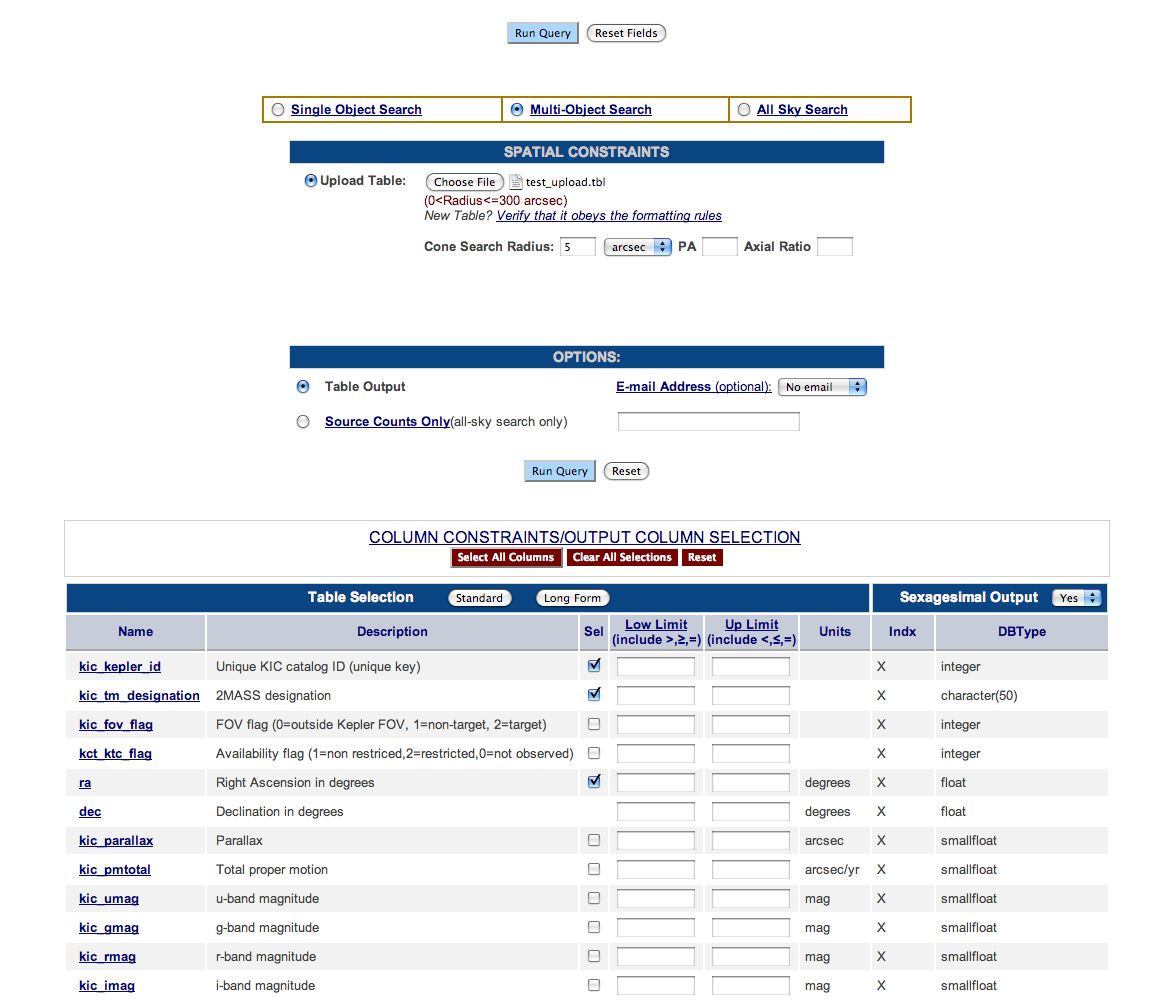
The Multiple Object search option uses a cone search to find positional matches of sources in the KIC with coordinates in an input source list. To select this option, click on the radio button next to Multi-Object Search.
There are two ways of performing a Multi-Object search:
- Include it as a column in the table file, which allows for a different radius for each position (example).
- Enter it in the textboxes below the Upload Table textbox - this is most useful if the search radius is the same for all positions. (example).
You can see an example of a table here.
File format
The table must be in IPAC Table Format, an ASCII column delimited format in which vertical lines (Ò|Ó) are used to define the boundaries of each column. See these two sample files, one in which the cone search radius is defined in this table, and one in which it is not.
Tables must be formatted as follows:
- Positions must be specified in RAJ2000 and DecJ2000 format.
- Position columns must be given the names ÒraÓ and ÒdecÓ.
- Position entries must be in decimal degrees.
- Rows starting with a vertical line ( | ) are table header lines . The first of these (the only one required) must contain the names of each column (e.g., ra, dec, flux).
- The columns in the header row are separated by a vertical line ( | ) to show the boundaries of each column.
- There is also a vertical line at the beginning and end of the header row.
- There must be at least one row of data in the row directly following the header row, and the data should align with the column names.
- The number of cells containing data must be equal to or less than the number of columns.
- The data columns are lined up because they are column-aligned, which also makes the data more readable.
- Data must fit within the boundaries of each column and not extend beyond the vertical header lines.
- Running new tables through the table validation service is recommended. This attempts to correct for common formatting problems. Please follow the Best Practices listed below to reduce formatting errors.
- Columns must not contain "non-printable" ASCII characters. Printable characters are things like "a" and "?." Non-printable characters are occasionally inserted by text editing programs for their own purposes, and include symbols like ESCAPE ( ^[ ), FORMFEED ( ^L ) and DELETE.
- Be very careful when using tabs. A tab ( ^I ) is a single character used in most editors to define a display action ("jump to the next tab stop"). In aligned data, such as those in an IPAC ASCII Column-Aligned format, tabs can make the data look aligned, when the characters don't line up and are therefore illegal. Any extra tabs will inflate the column count. It is best to remove all tabs.
- Use an ASCII text editing program, such as Notepad in Windows or TextEdit on Apple computers, which prevents extraneous characters from being inserted.
Spatial Constraints
Use these options to upload and check the table.
Uploading the Table
- Choose File Ð Click on the Choose File button to open a Browse window. Navigate to the correct directory and select the file name of the table that you would like to upload. Click the Choose File button. The filename will be displayed.
- Verify that it obeys the formatting rules - Use this service to verify that your table is in the proper format before uploading.
- Cone Search Radius Ð If the radius is not included in the table, enter the radius of the search region. If the radius is in the table, leave the radius blank. (Entering a radius in this box will supercede a radius included a file).
- Angular unit Ð If a radius is specified, select the required angular unit (arcsec, arcmin or deg). If the search radius exceeds the maximum allowed value, Gator will default to the maximum value and write a message to this effect to the query monitor.
- PA Ð Specify the position angle in degrees measured E of N from 0 to 360 deg.. Leave blank for a circular search.
- Axial Ratio Ð Specify the axial ratio for the cone. This is the ratio of the semi-minor axis to the semi-major axis. This value is between 0 and 1. Leave blank for a circular search.
Options
- Table Output Ð This option specified to output a table rather than a source count.
- Email Address - To send email, select ÒSend EmailÓ from the pulldown menu. Type your fully qualified email address in the textbox provided. When the query is done, you will receive an e-mail that will contain a link to the results pages. The default value is ÒNo emailÓ.
- Source Counts only (all sky search only) - This option specifies to only return a count of the number of objects found. This option can only be used with the All-sky search option. Using this option is recommended when performing an All Sky Search for the first time in order to gauge the size of the output table.
Best Practices for Successful Table Upload
Here are some general best practices for uploading tables:
- Run your table through the Table Reformat and Validation service to identify possible errors in your table.
- Columns must not contain "non-printable" ASCII characters. Printable characters are things like "a" and "?." Non-printable characters are occasionally inserted by text editing programs for their own purposes, and include symbols like ESCAPE ( ^[ ), FORMFEED ( ^L ) and DELETE.
- Be very careful when using tabs. A tab ( ^I ) is a single character used in most editors to define a display action ("jump to the next tab stop"). In aligned data, such as those in an IPAC ASCII Column-Aligned format, tabs can make the data look aligned, when the characters don't line up and are therefore illegal. Any extra tabs will inflate the column count. It is best to remove all tabs.
- Use an ASCII text editing program, such as Notepad in Windows or TextEdit on Apple computers, which prevents extraneous characters from being inserted. Unix/Linux users should be aware that the vi editor generally shows all odd characters as control codes except for tab, which it will often quietly insert to "save space" at the beginning of lines with multiple blanks.
- Save the file name with the .tbl extension, if possible.
- The number of cells containing data must not exceed the number of column names. However, the number of cells can be fewer than the columns of data (the line will be padded with trailing blank cells).
All Sky Search
Use this option to perform a query without spatial constraints. It is best used to perform queries on physical properties across a whole catalog. Such queries can be set up by taking advantage of the column constraints and the additional constraints (add link) features. See the documentation on these features for further details.
Output tables on queries without spatial constraints can be very large, so returning a count of the number of objects found to gauge the size of the output tables is recommended. To do this, select the All-Sky Source Counts only option on the web form.
Additional Constraints
This option allows custom requests. Constraints are entered using SQL syntax, but you need not have detailed knowledge of SQL to enter your constraints. There are four types of queries that can be formed in the Additional Constraints section of Gator:
- Comparisons: This query type compares the values of one expression to another. The great majority of queries will be of this type, which use simple mathematical operators. For example, ra > 299.5 selects rows with right ascension above 299.5 degrees. Another example : kic_jmag <= 12 selects all sources having J magnitudes brighter than or equal to 12.
- Ranges: This query type tests whether an expression falls within a certain range. For example, ra between 299 and 300 selects rows having Right Ascension values between 299 and 300 degrees. Another example is ra not between 299 and 300 selects rows not between 299 and 300 degrees.
- Set memberships: This query type tests whether an expression matches any one of a set of values. For example kic_cq in ('PHOTO','TYBV') selects rows where the kic_kepmag comes from photographic optical photometry or from Tycho-2 photometry.
- Pattern Matching: This query type tests whether the value of a column containing string data matches a specified pattern. For example, kic_cq='SCP' selects rows where the kic_kepmag comes from SDSS filter photometry. Another example is kic_tm_designation like '1922%' selects rows where the 2MASS designation has a name beginning with 1922.
- Null values: This query type checks whether a column has a null value. For example, kic_jmag is not null returns only those entries whose kic_jmag has a measured (non-null) value. Another example is kic_fov_flag is not '0' selects entries within the boundaries of the Kepler field of view.
Mathematical Computations
You can perform simple computations with data from numeric columns or on numeric constants in a select list using standard arithmetic operators: +, -, /, *, and % (modulo). When there is more than 1 arithmetic operator in an expression, multiplication, division, and modulo are calculated first, followed by subtraction and addition. Expressions within parentheses take precedence over all other operations.
Available Math Functions| abs(numeric_expression) | Absolute Value |
| acos(float_expr) | Arc Cosine |
| asin(float_expr) | Arc Sine |
| atan(float_expr) | Arc Tangent |
| atn2(float_expr1,float_expr2) | Computes the angular component of the polar coordinates associated with (float_expr1, float_expr2) |
| ceiling(numeric_expr) | Closest highest integer to the floating point, e.g. if the floating point value is 5.5 this will return 6. |
| cos(float_expr) | Cosine |
| cot(float_expr) | Cotangent |
| degrees(numeric_expr) | Changes radians to degrees. |
| exp(float_expr) | Exponential |
| floor(float_expr) | Closest lowest integer to the floating point, e.g. if the floating point value is 5.5 this will return 5. |
| log(float_expr) | Logarithm (base e) |
| log10(float_expr) | Logarithm (base 10) |
| pi() | Value of pi |
| power(numeric_expr,power) | numeric_expr raised to the power of power |
| radians(numeric_expr) | Changes degrees to radians. |
| round(numeric_expr, integer_expr) | Returns the rounded value of the first expression, out to integer_expr digits |
| sign(numeric_expr) | Gives the sign of the value: positive or negative |
| sin(float_expr) | Sine |
| sqrt(float_expr) | Square root |
| tan(float_expr) | Tangent |
Specifying Ranges
Each constraint in this section has a textbox for a minimum and maximum value. Minimum and maximum values should be expressed as follows:
- > - Use > to specify to search for an object with a value greater than the value you have specified.
- > Ð Use > to specify to search for an object with a value greater than or equal to the value you have specified.
- = Ð Use = to specify that the results can only contain stars with a constraint equal to the number you specified.
- < - Use < to specify to search for an object with a value less than the value you have specified.
- < - Use < to specify to search for an object with a value less than or equal to the value you have specified.
- ! or <> Ð Use ! or <> to search for objects that is not equal to the value you have specified.
- !> Ð Use !> to search for objects that are not greater than the value you have specified.
- !< Ð Use !< to search for objects that are not less than the value you have specified.
Inclusive ranges (BETWEEN and NOT BETWEEN)
You can use the BETWEEN keyword to search for the lower and upper value as well as the values in between them. NOT BETWEEN finds all rows not inside the range.
Example
ra between 12 and 14
dec not between -90 and 0
Lists and Set Membership (IN, NOT IN)
The IN keyword allows you to select values that match any one of a list of values. NOT IN selects values that do not match values in the list. The parentheses are required.
Example
Hubble_Type in('Sa', 'Sb', 'Sc')
This is more concise than:
Hubble_Type = 'Sa' or Hubble_Type = 'Sb' or Hubble_Type = 'Sc'
Pattern and character string matching (LIKE, NOT LIKE, MATCHES)
The LIKE keyword is used to select rows containing column values that match specified portions of character strings. LIKE is used with character strings and text columns. LIKE accepts 2 wildcards:
- % (percent) any string of 0 or more characters
- _ (underscore) any single character
NOT LIKE can be used with the same wildcards.
Character strings must be enclosed in single or double quotes. Do not use back-quotes (`).
MATCHES accepts 4 wildcards:
- * any string of 0 or more characters
- [] any single character within the specified range (e.g., [a-f] or [abcdef]
- [^] any single character not within the specified range (e.g., [^a-f] or [^abcdef]
- ? matches any single character
Examples:
au_lname LIKE '%son' - Selects names ending with "son". For example, this string would returns "albertson" as well as "son".
au_lname LIKE '%en%' - Selects any name with "en" in it. For example this would return "english," "steven," "dennis," etc.
au_lname LIKE '_ars' Ð This string searches for 4 letters ending with "ars". For example, it would return "lars" but not "sears".
au_lname MATCHES '[M-Z]inger' - All names beginning with M to Z and ending with "inger".
au_lname MATCHES 'M[^c]*' Ð Matches all names beginning with M, but not having c as a 2nd letter.
IMPORTANT NOTE: The only WHERE conditions that you can use on character columns are "=" (equals), LIKE, NOT LIKE, MATCHES, or NOT MATCHES.
When a literal string equality is desired, it is recommended that you use "=" in the constraint. For example:
WHERE k_mrg_flg='200302'
However, to find records that contain substring matches (using wildcards), you should use LIKE. For example, to locate k_mrg_flg values with any characters followed by '2', you might try the following:
WHERE k_mrg_flg='%2'
Although this is syntactically valid SQL, it will result in no matching records because these flags contain only numeric characters such as '200302'. To get the constraint you need on this character column you should type:
WHERE k_mrg_flg LIKE '%2'
Note that '%' is the wildcard used with the LIKE condition (not "*").
Logical Operators (AND, OR, NOT)
The logical operators AND, OR and NOT are used to connect search conditions in the WHERE clause. When more than 1 logical operator is used in a statement, NOT is evaluated 1st, then AND, and finally OR. You can use parentheses to change the order of evaluation within a WHERE clause.
Examplesnot fnu_60/fnu_100 > 0.25
(fqual_12 = 3 or fqual_60 = 3) and major <5.0
Date Constraints
Allowed formats for the "date" type is yyyy-mm-dd, i.e., year first, then a two-digit month, followed by a two-digit day.
date = '1997-10-24'
date between '1997-10-24' and '1997-10-29'
Users also can use INFORMIX/DBMS syntax:
date = mdy(10,24,1997)
date between mdy(10,24,1997) and mdy(10,29,1997)
IMPORTANT NOTE: No white characters are allowed in additional constraints.
Date
Gator supports only the yyyy-mm-dd format for date datatypes. For example:
= 1996-03-20
NULLs and Unknown Values (IS NULL and IS NOT NULL)
An entry of NULL in a data table means that there is no entry (e.g., missing data). NULL is not synonymous with 'zero' or 'blank'. 'NULL' and 'null' are equivalent.
Examples:
Bmag is null
Bmag is not null
Note that some data tables may have columns where null values are not permitted. These are indicated in the column descriptions.
Column Constraints / Output Column Selection
The Column Constraints / Output Column Selection parameters are used to further refine your search and tailor your output using the data in KIC. Gator provides textboxes to specify constraints on a specific query. The formatting used in setting these constraints depend on the datatype.
How to Set Constraints
Gator provides a listing of the columns in the KIC catalog. Constraints can be specified by entering values into the Low Limit and Up Limit textboxes. These values will be used to constraint the search, however to add a given column to the output, the Sel checkbox must be selected. Note that some columns in the catalog are indexed for fast access, and are indicated as such under the Indx header.
How to Select Columns for Output
The desired columns can be selected simply by clicking on the checkboxes in the Sel column. When you run you search, the columns you have selected, as well as the default columns, will be output into the table.
Query Form Control Buttons
- Select All Columns button Ð Using this button will select all of the constraints. These constraints will then appear in the output table.
- Clear All Selections button Ð Clicking this button will de-select all of the constraints.
- Reset button Ð Clicking the reset button will reset all of the values back to their default state with the parameter selected, but no minimum or maximum values specified.
Table Selection Options
Table Form Selection Ð There are two options available: standard and long.
- Standard - This is a subset of the columns in the catalog, which includes important and commonly used columns. This is the default table form. The Standard button will not appear on the interface if standard form is the only choice.
- Long Form - This displays all columns in the catalog. The Long Form button will not appear if it has the same selection as Standard.
Value Type Selection
- Sexagesimal Output Ð This option specifies to output any results as sexagesimal values. Select No from the pulldown menu to have your results output as degrees. The default value is to output results as sexagesimal.
Specifying Ranges
Each constraint in this section has a textbox for a minimum and maximum value. Minimum and maximum values should be expressed as follows:
- > - Use > to specify to search for an object with a value greater than the value you have specified.
- > Ð Use > to specify to search for an object with a value greater than or equal to the value you have specified.
- = Ð Use = to specify that the results can only contain stars with a constraint equal to the number you specified.
- < - Use < to specify to search for an object with a value less than the value you have specified.
- < - Use < to specify to search for an object with a value less than or equal to the value you have specified.
Syntax
< comparison operator>< value >
Warning: SQL statements are not accepted.
Example
An example of a range is ra Low Limit ">299.5" and Up limit "<300". This specifies to find sources that are a right ascension of greater than 299.5 degrees, but less than 300 degrees. You can find example searches here.Characters
A character string must be enclosed in a pair of quotes e.g. in Low Limit or Up Limit text fields, type in one of the following:
="A"
>="A"
<="A"
Examples:
kic_tm_designation ="19445845+4507507",
This example returns one object: del Cyg.In the long form:
kic_cq ="SCP"
This example returns all objects for which the kic_kepmag has SDSS filter photometry.Numerical (Integer, Float, or Decimal)
Databases generally support a different range of datatypes than do the programming languages. Use the following formatting rules in supplying constraints:
- Treat int and smallint datatypes as integers.
- Treat float and smallfloat datatypes as floats.
- Treat decimal datatypes as doubles.
=2 (for integer)
=2.543 (for float or decimal)
Date
Gator supports only the yyyy-mm-dd format for date datatypes. For example:
= 1996-03-20
Description of Constraints
You can find a full description of each of the column constraints here.
Results Page
When you search returns, a Results page similar to the following will be returned.
graphic
Data Tag
Workspace / Status Table
Table of Sky Coverage and Constraints
Results Display map
View Table / Key
Reformat / Compress Data
Plot Data
Hide the Plot button
Hide the Retrieved Data Table button Object Table Row Idx Clon Clat User-Specified parmeters At the top, you will see a table with the Object name or coodinates, the source that resolved the name if used, Type, Galactic Longitude, Galactic Latitude, Equatorial J2000 right ascension and declination, name and path of the workspace used, and the Current Job and Query History hyperlinks. Below this, you will see the location in the sky that you specified, as well as any constraints. Note that the right ascension and declination are expressed in different ways in the different tables. These values are equivalent. In the middle of the page is a map with the location of your object. To the right of the page are a number of hyperlinks. These allow you view the output table, reformat/compress the data or plot the data. You can use the Hide the Plot or Hide the Retrieved Data Table buttons to hide portions of your results. Click the View Table hyperlink, and you can view your results and download the result table in an ASCII file. Note that only the constraints that had their Sel checkboxes selected will be shown in the result table.Tutorials
The following examples will walk you through some common search types using Gator:
Coordinate Search - Cone with Email
Coordinate Search with Constraints
Multi-Object Search (Web form)
Single Object Search
This search will look for single objects instead of finding all of the objects in a given area.
- Select the radio button next to Single Object search. Type "HAT-P-7" into the Coordinate or Object Name textbox. For additional examples, try typing any of the following: NGC681,1 NGC6791, HR 7468, HR 7444, 14 Cyg, 16 Lyr or TrES-2.
- Select the radio button next to Cone. Specify a radius if 10 in the textbox and select arcsec from the pulldown menu, if these are not already selected.
- Select the radio button next to Table Output.
- Click the Run Query button.
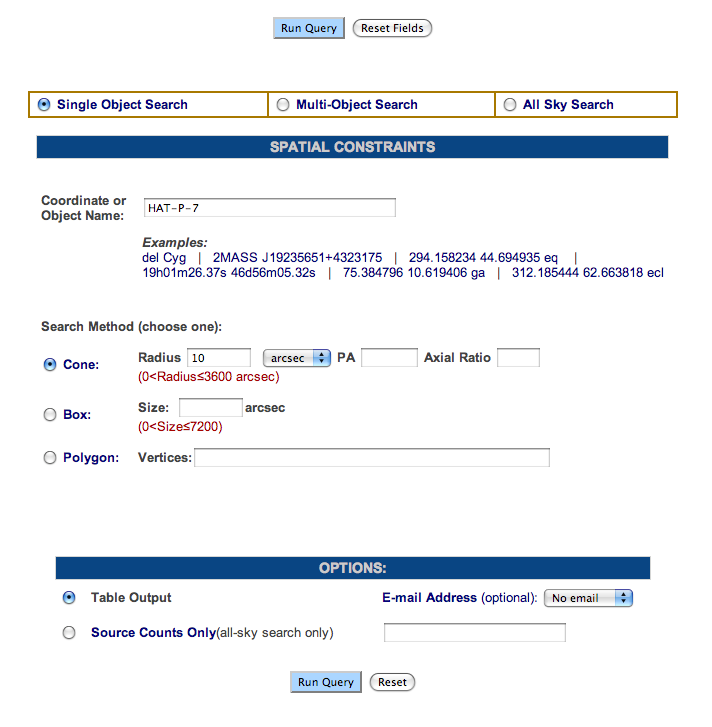
The Result page will be displayed:
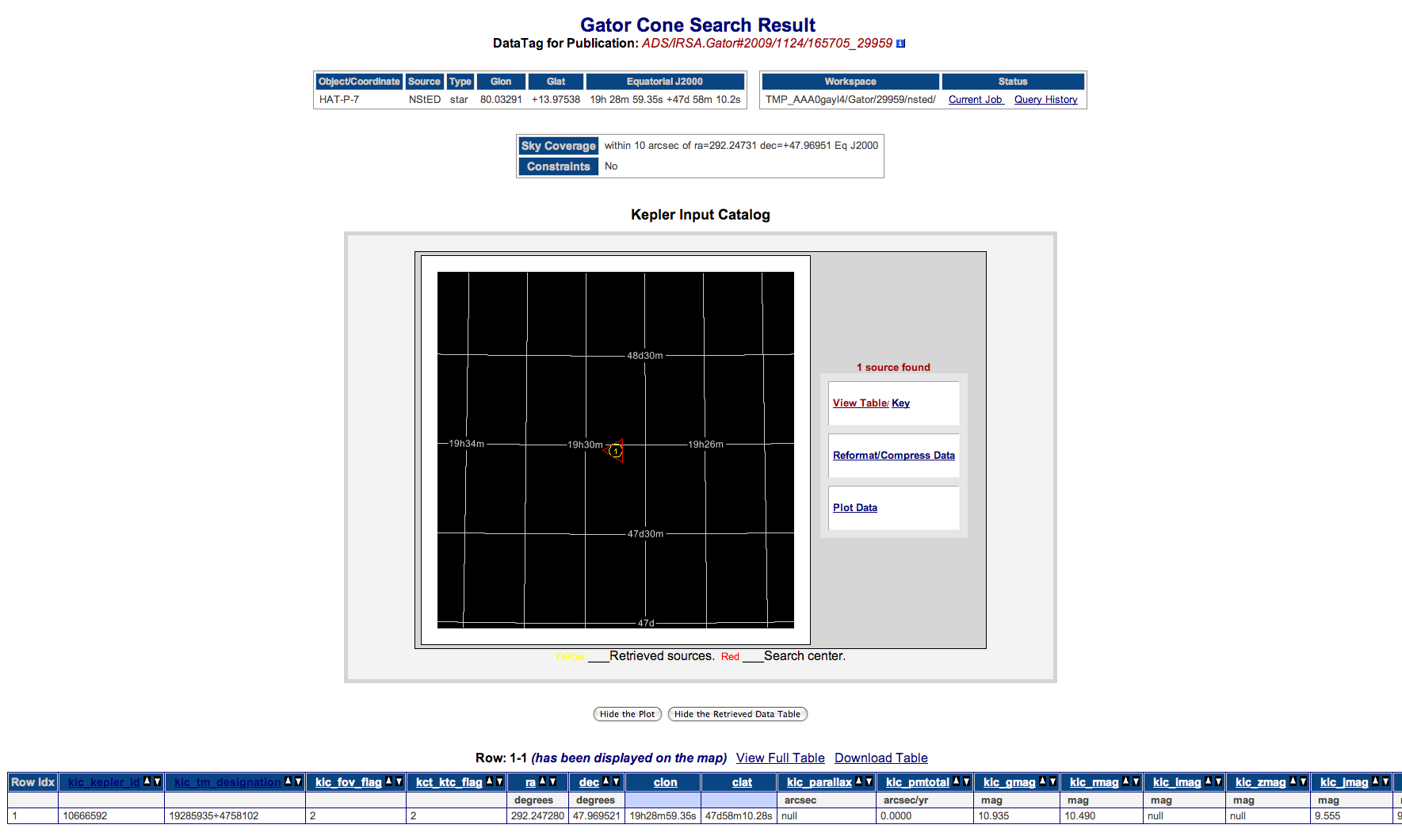
At the top, you will see a table with the Object name or coodinates, the source that resolved the name if used, Type, Galactic Longitude, Galactic Latitude, Equatorial J2000 right ascension and declination, name and path of the workspace used, and the Current Job and Query History hyperlinks.
Below this, you will see the location in the sky that you specified, as well as any constraints. Note that the right ascension and declination are expressed in different ways in the different tables. These values are equivalent.
In the middle of the page is a map with the location of your object. To the right of the page are a number of hyperlinks. These allow you view the output table, reformat/compress the data or plot the data. You can use the Hide the Plot or Hide the Retrieved Data Table buttons to hide portions of your results. Click the View Table hyperlink, and you can view your results and download the result table in an ASCII file. Note that only the constraints that had their Sel checkboxes selected will be shown in the result table.
Coordinate Search - Cone
This example performs a typical coordinate search in a cone-shaped area. In particular it searches all of the objects centered on the Kepler Field within a radius of 10 arcminutes.
- Select the radio button next to Single Object search. In the Coordinate or Object Name textbox type: 19h22m40s 44:30:00.
- Click on the radio button next to Cone, if it is not already selected. Type 10 in the radius textbox. Select arcmin as the unit from the pulldown menu.
- Click on the radio button next to Table Output, if it is not already selected.
- Click the Run Query button.

Your results page will look like this:
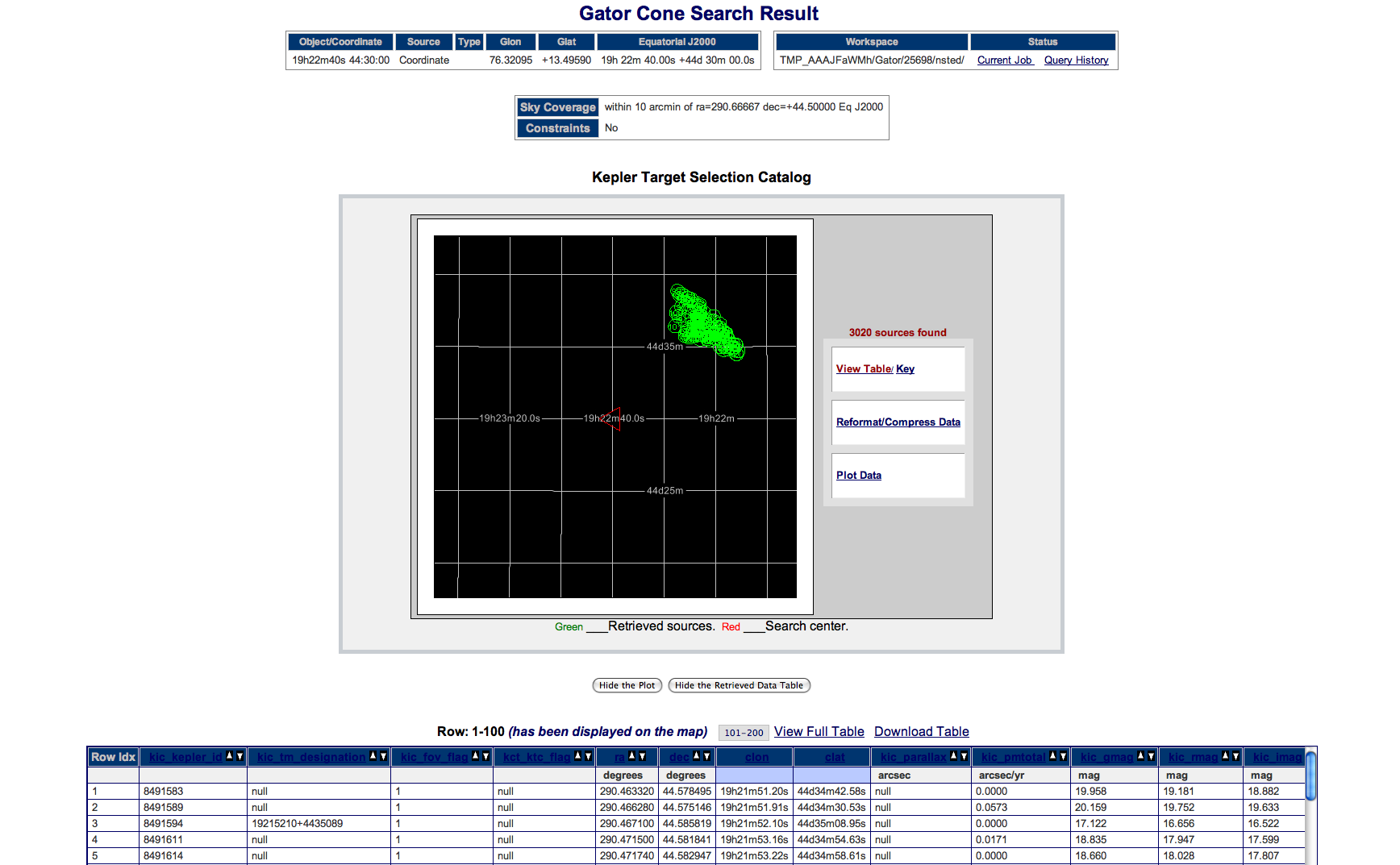
showing a total 3,020 sources returned.
Coordinate Search - Cone with Email
Coordinate Search - Box
This example builds on the previous Coordinate example, using a Box search instead of a Cone search.
- In the Coordinate or Object Name textbox type 19h22m40s 44:30:00.
- Click on the radio button next to Box. Type 500 in the Size textbox.
- Click on the radiobutton next to Table Output if it is not already selected.
- In the column Constraint box, click the Clear All selections button.
- Click the Sel checkbox next to kic_jmag. Type >12 in the low limit textbox and <16 in the Up Limit textbox.
- Click the Sel checkbox next to kic_teff. Type >5500 in the low limit textbox and <6500 in the Up Limit textbox.
- Click the Sel checkbox next to ra, kic_kepler_id and kic_tm_designation. This will include these parameters in your results.
- Click the Run Query button. Your results will look like this: >

and a total of 3 sources will be returned.
Coordinate Search - Polygon
This example performs a polygon search. This search allows you to define your own shape, in this case a pentagon. Each of the vertices must be defined as a J2000 RA and dec pair, in decimal degrees.
- Click on the radio button next to Polygon. Type the following in the Vertices textbox: 19h05m45s 40:01:00, 19h05m15s 40:01:00, 19h05m00s 40:00:00, 19h05m30s 39:59:00, 19h06m00s 40:00:00s.
- Click on the radiobutton next to Table Output, if it is not already selected.
- Click the Sel checkbox next to kic_jmag. Type <12 in the low limit textbox.
- Click the Sel checkbox next to kic_teff. Type >5500 in the low limit textbox and <6500 in the Up Limit textbox.
- Click the Sel checkbox next to ra, kic_kepler_id and kic_tm_designation. This will include these parameters in your results.
- Click the Run Query button. Your results will look like this:
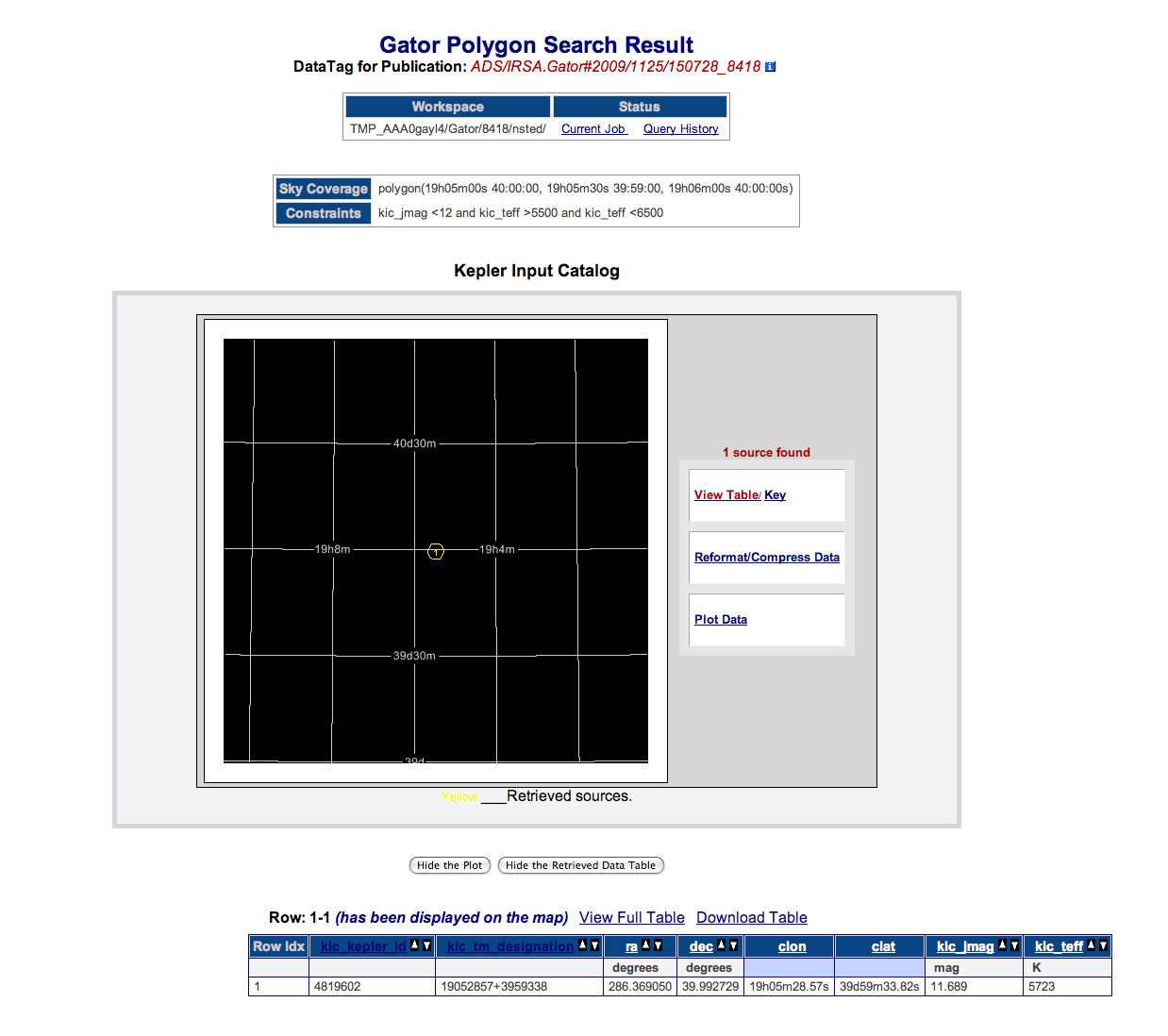
and the search will return 1 source.
Multi-Object Search (Webform)
The following search shows how to perform a Multi-Object Search with the Cone Search Radius specified on the webform.- Click on the Multi-Object Search radiobutton.
- Save this file to your computer: test_upload.tbl.
- Click on the Choose File button next to the Upload table option. Select test_upload.tbl.
- In the Cone Search Radius box type: 5. Select arcsec from the pulldown menu.
- Click the Sel checkbox next to ra, kic_kepler_id and kic_tm_designation. This will include these parameters in your results.
- Click the Run Query button. Your results will look like this:
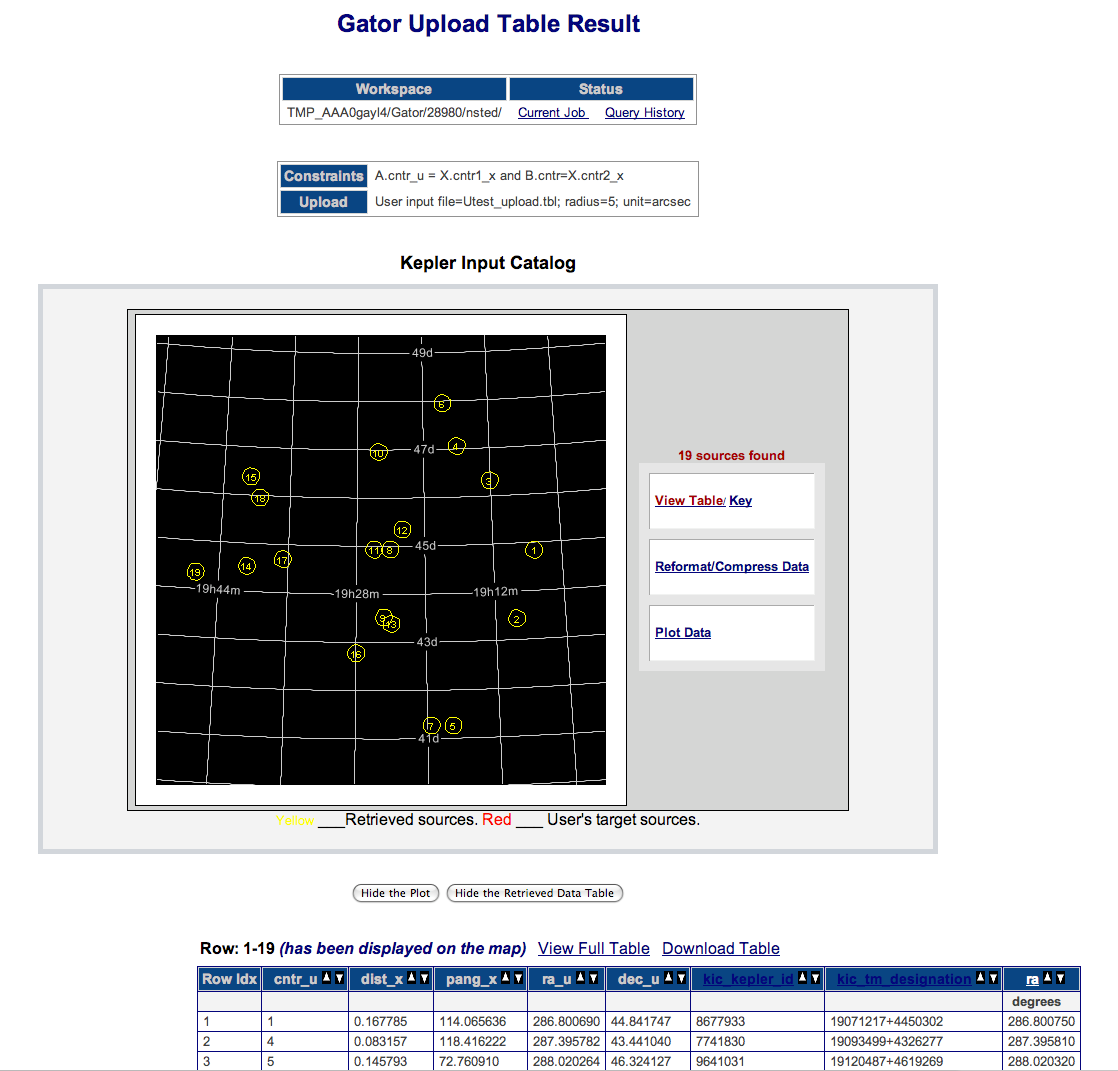
with a total of 27 sources returned.
Multi-Object Search (Table)
The following search shows how to perform a Multi-Object Search with the Cone Search Radius specified in the input table. Specifying the radius in the table is useful if you have multiple sources, and different radii that you like to search for each source.- Click on the Multi-Object Search radio button.
- Save this file to your computer: test_upload_radius.tbl.txt.
- Click on the Choose File button next to the Upload table option. Select test_upload_radius.tbl.
- Select arcsec from the pulldown menu.
- Click the Sel checkbox next to ra, kic_kepler_id and kic_tm_designation. This will include these parameters in your results.
- Click the Run Query button. Your results will look like this:
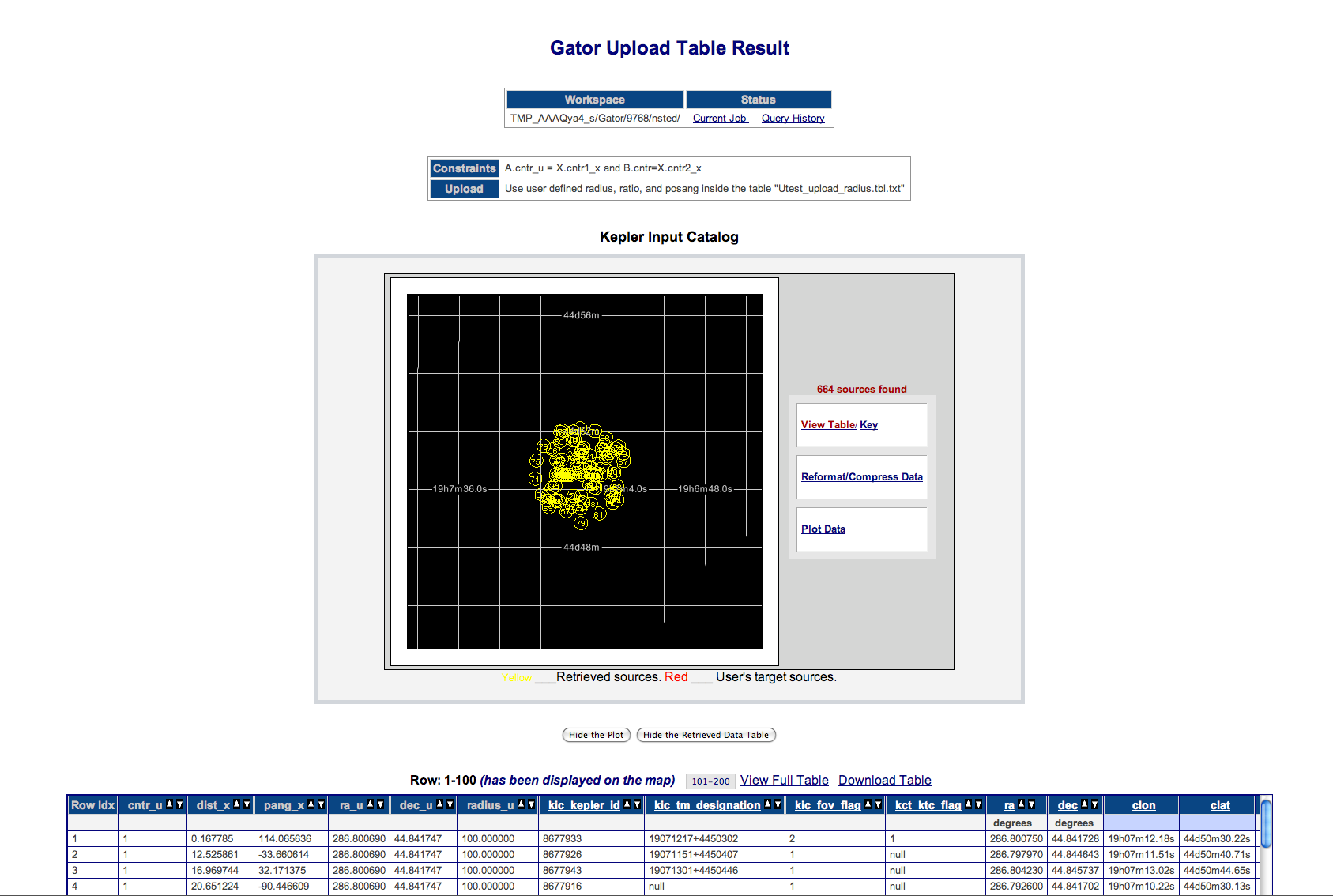
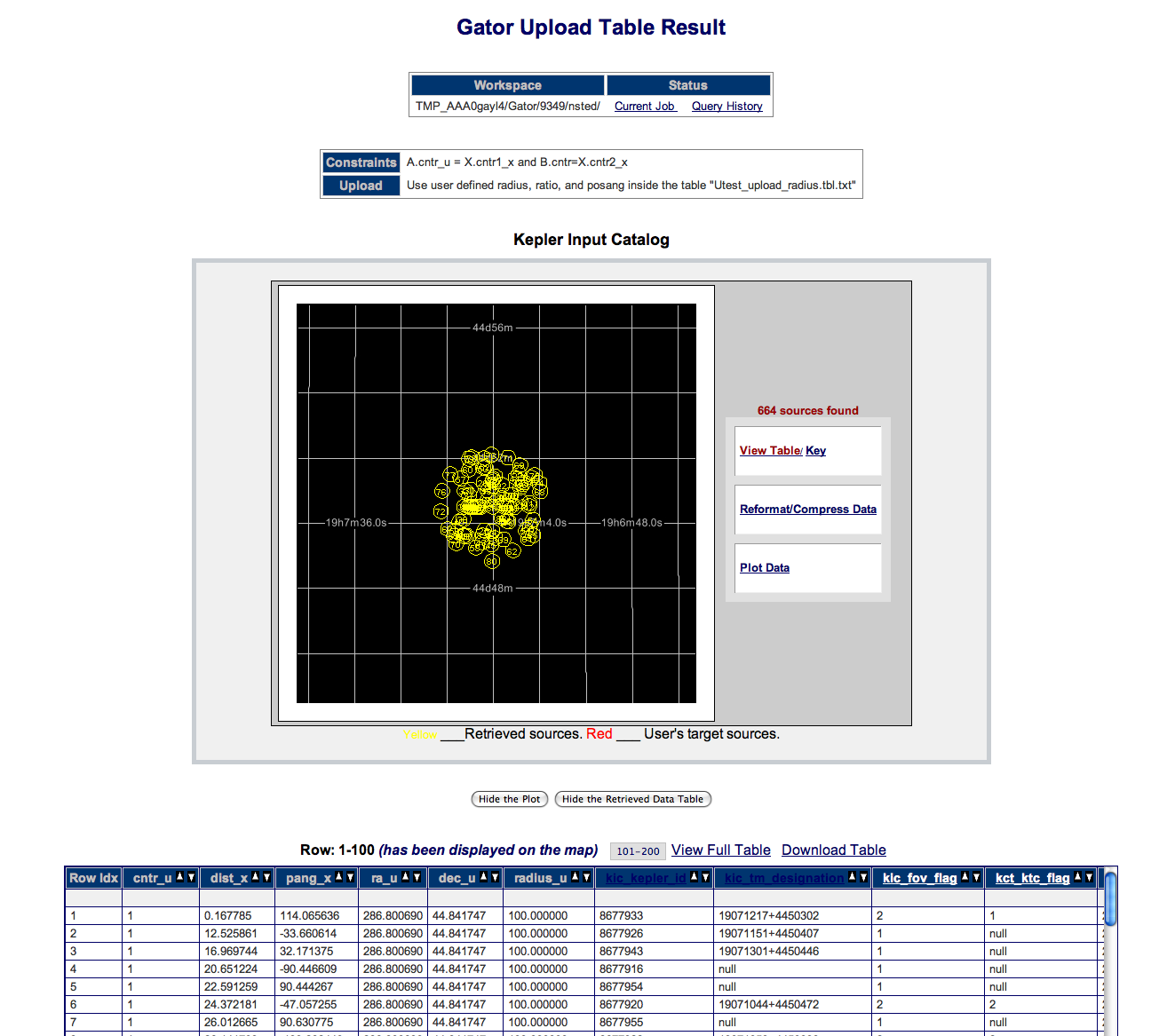
with a total of 585 sources returned.
Coordinate Search with Constraints
This example performs the same coordinate search in a cone-shaped area as the previous example, but reduces the number of results using the column constraints, specifically J magnitude brighter than 12 and an effective temperature between 5,500 and 6,500.
- In the Coordinate or Object Name textbox type: 19h22m40s 44:30:00.
- Click on the radio button next to Cone, if it is not already selected. Type 10 in the radius textbox. Select arcmin as the unit from the pulldown menu.
- Click on the radiobutton next to Table Output, if it is not already selected.
- In the column Constraint box, click the Clear All selections button.
- Click the Sel checkbox next to kic_jmag. Type <12 in the low limit textbox.
- Click the Sel checkbox next to kic_teff. Type >5500 in the low limit textbox and <6500 in the Up Limit textbox.
- Click the Sel checkbox next to ra, kic_kepler_id and kic_tm_designation. This will include these parameters in your output.
- Click the Run Query button.
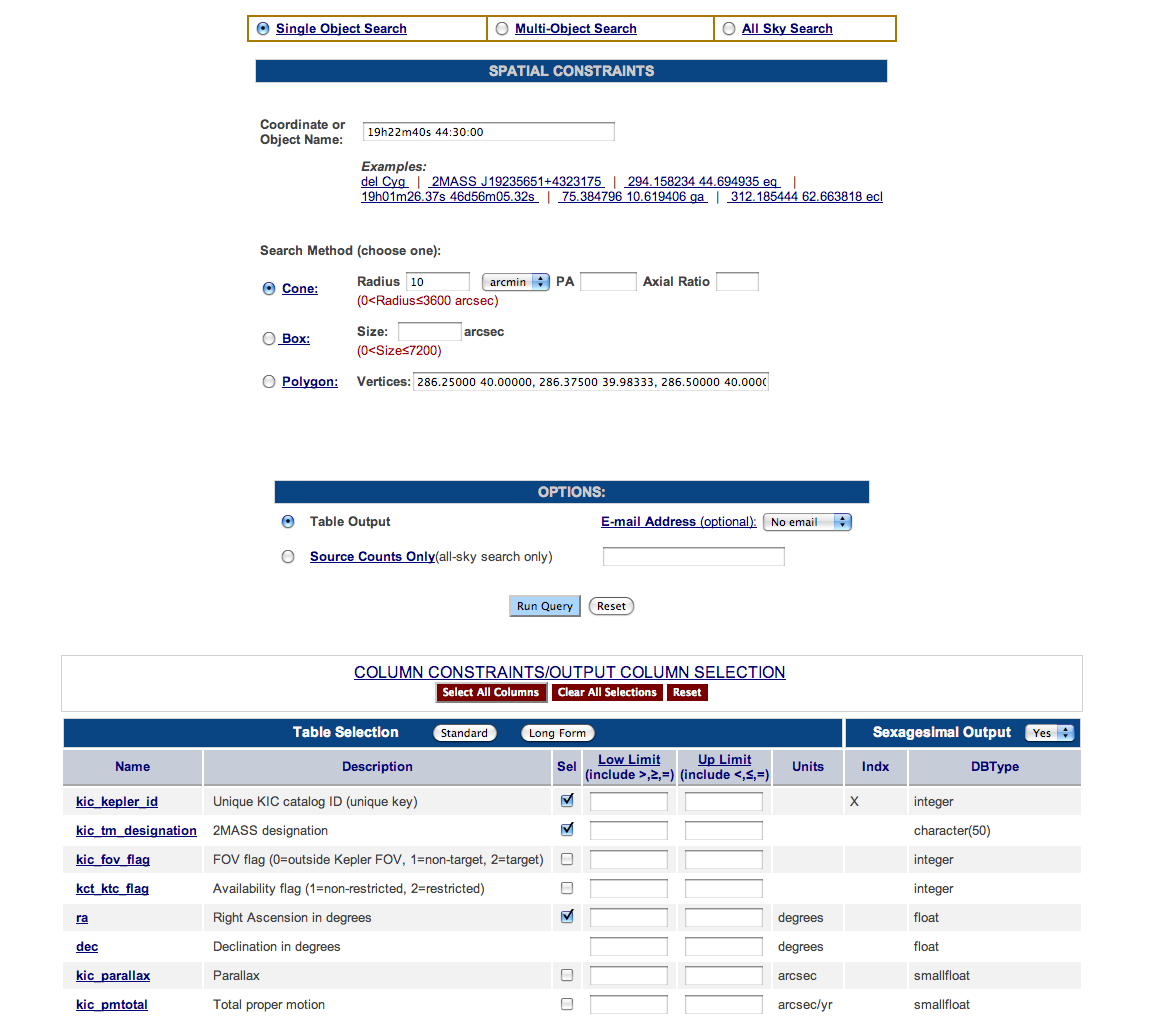
Your results page will look like this:
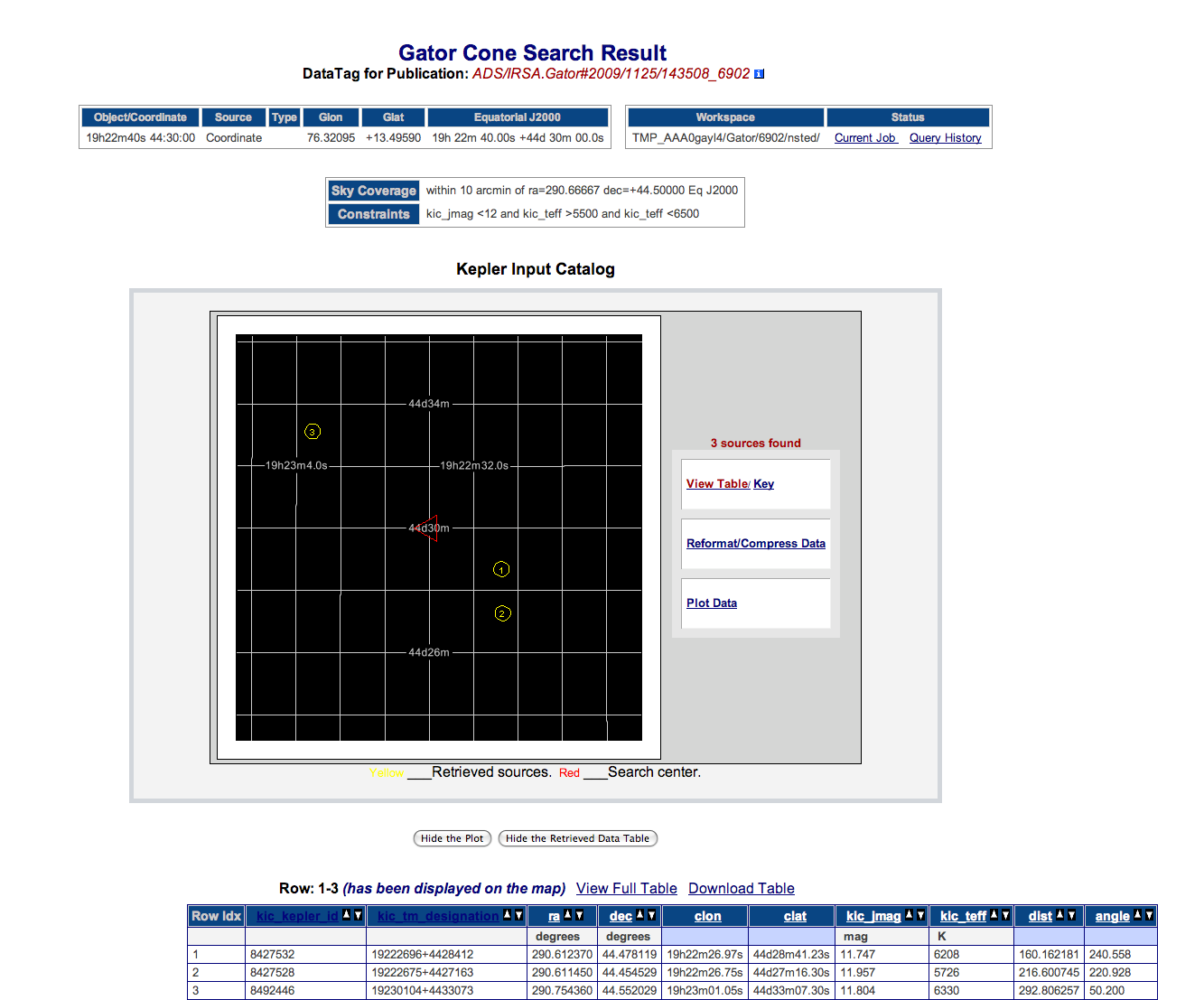
showing a total of 3 results.
Coordinate Search Using the Long Form with Constraints in Output
This example performs the same coordinate search in a cone-shaped area as the previous example, but uses additional column constraints to refine the results further. These column constraints are then output in the Results table.
- In the Coordinate or Object Name textbox type: 19h22m40s 44:30:00.
- Click on the radio button next to Cone if it is not already selected. Type 10 in the radius textbox. Select arcmin as the unit from the pulldown menu.
- Click on the radiobutton next to Table Output if it is not already selected.
- In the column Constraint box, click the Clear All selections button.
- In the Table Selection section, click the Long Form button.
- Click the Sel checkbox next to kic_jmag. Type <12 in the Low Limit textbox.
- Click the Sel checkbox next to kic_teff. Type >5500 in the Low Limit textbox and <6500 in the Up Limit textbox.
- Click the Sel checkbox next to kic_contamination. Type <0.1 in the Low Limit textbox.
- Click the Sel checkbox next to ra, kic_kepler_id and kic_tm_designation. This will include these parameters in your output.
- Click the Run Query button.
Your results page will look like this:
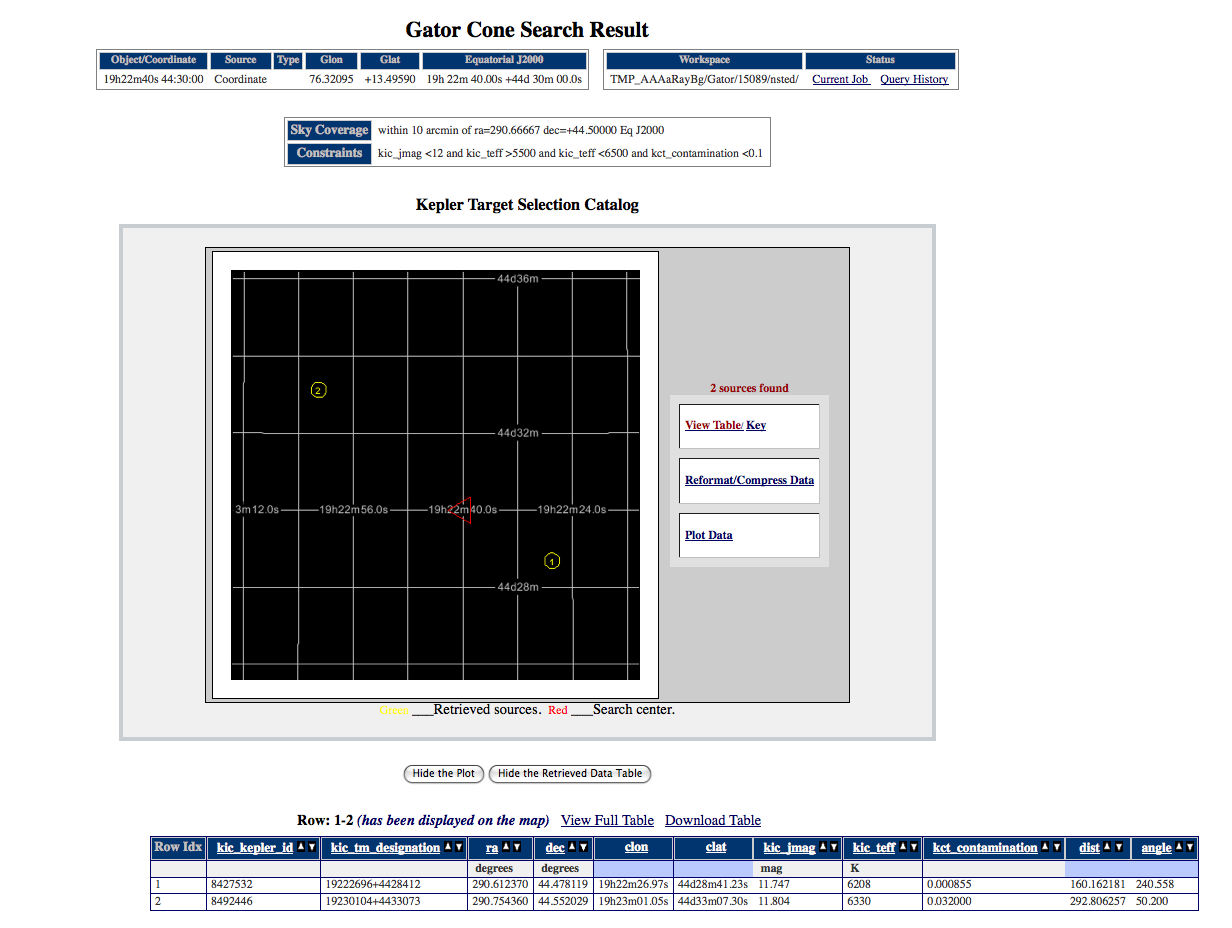
showing a total of 2 results.
Coordinate Search Using the Long Form with Constraints in Not Output
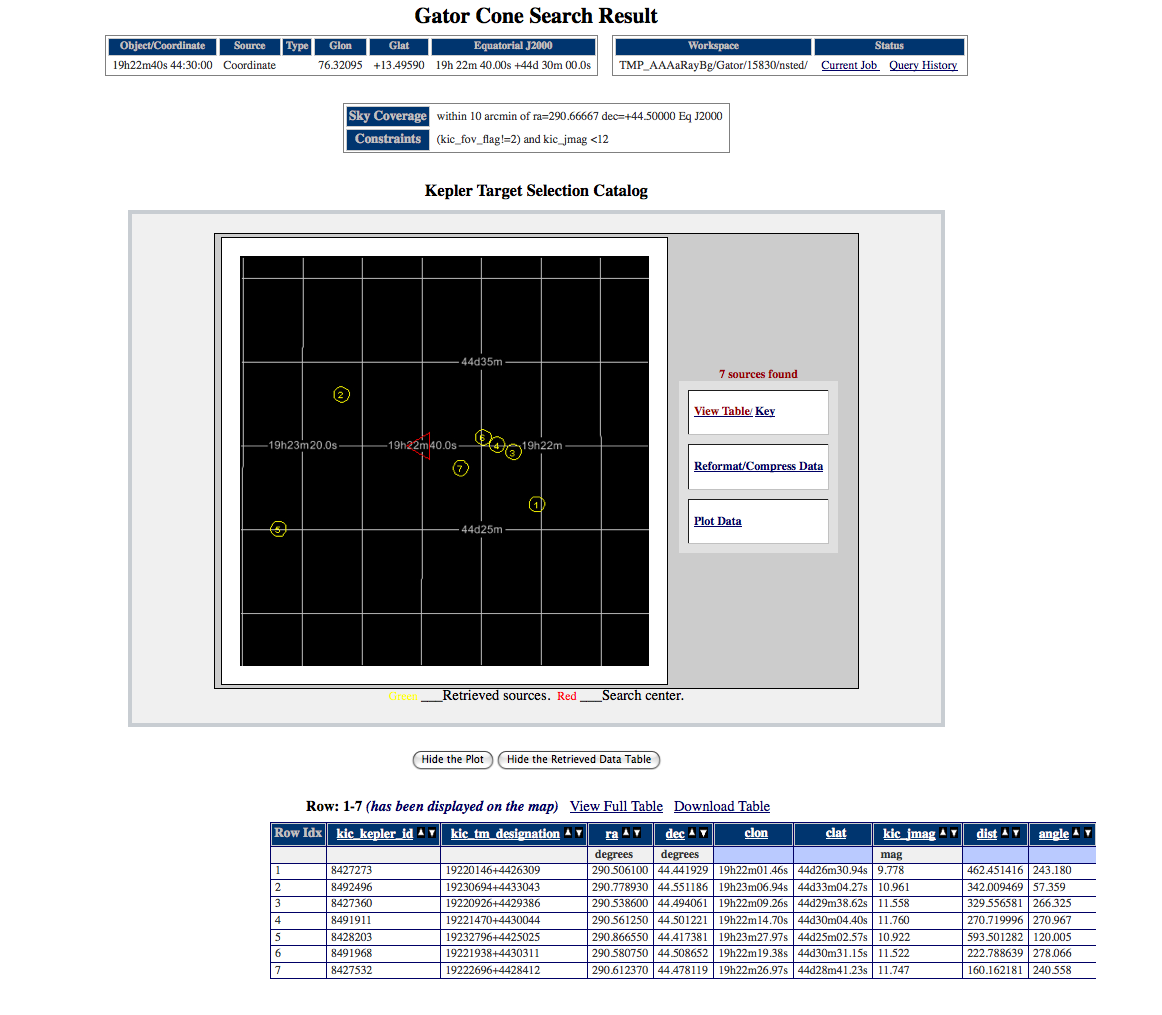
This example performs the same coordinate search in a cone-shaped area as the previous example, but the constraints do not appear in the Results table. This allows you to constrain your search as you wish, while creating a Results table only showing values of interest.
- In the Coordinate or Object Name textbox type: 19h22m40s 44:30:00.
- Click on the radio button next to Cone if it is not already selected. Type 10 in the radius textbox. Select arcmin as the unit from the pulldown menu.
- Click on the radiobutton next to Table Output if it is not already selected.
- In the column Constraint box, click the Clear All selections button.
- In the Table Selection section, click the Long Form button.
- Type <12 in the Low Limit textbox.
- Type >5500 in the Low Limit textbox and <6500 in the Up Limit textbox.
- Type <0.1 in the Low Limit textbox.
- Click the Run Query button.
Your results page will look like this:
showing a total of 2 results.
All Sky Search - Source Counts
This example demonstrates how to perform a search of the entire KIC catalog and return an object count. Returning an object count instead of complete entries allows the search to be performed quickly. This search type is useful when you are starting a new search and are uncertain how many objects will be returned.
- On the Gator query page, click the All Sky Search radio button.
- In the Options box, click the Source Counts Only radio button.
- In the Column Constraints box, click on the Clear All Selections button.
- In the Column Constraints box, click the Sel checkbox in the ra row. (Selecting ra automatically selects dec as well.)
- In the ra row enter: Low Limit >299.5, Up Limit <300.
- Click the Run Query button.
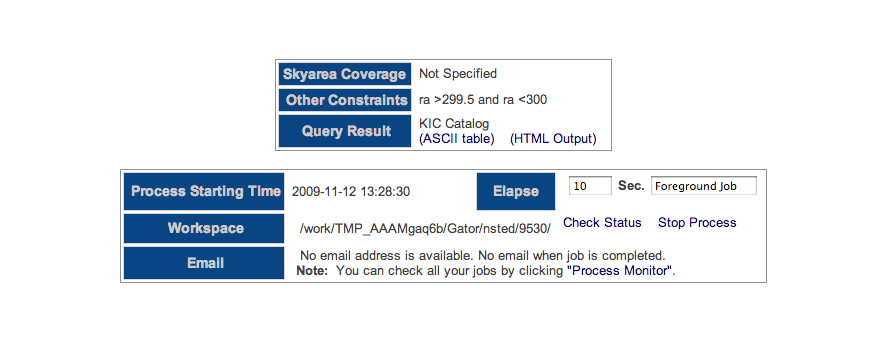
- This is a large search, and it will go into background processing. The Gator Query Processing Page will be displayed.
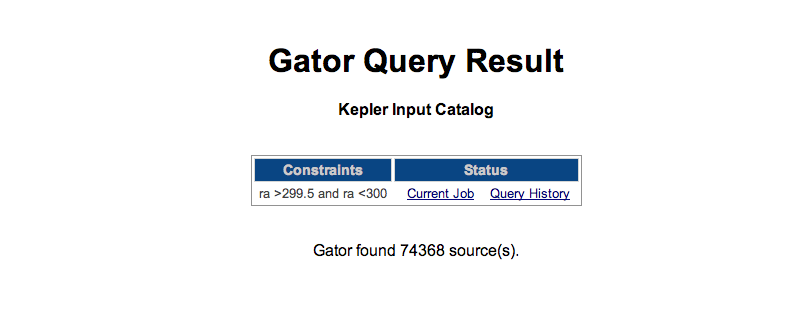
- To check the status of your job, click the Check Status link. When it is finished, click the View Table hyperlink. You should see a value of 433,139 objects returned.

All Sky Search - Table Output
This example demonstrates how to perform a search of the entire KIC catalog and return an object count. Returning an object count instead of complete entries allows the search to be performed quickly. This search type is useful when you are starting a new search and are uncertain how many objects will be returned.
- On the Gator query page, click the All Sky Search radio button.
- In the Options box, click the Table Output radio button.
- In the Column Constraints box, click on the Clear All Selections button.
- In the Column Constraints box, click the Sel checkbox in the ra row. (Selecting ra automatically selects dec as well.)
- In the ra row enter: Low Limit >299.5, Up Limit <300.
- Click the Run Query button.
- This is a large search, and it will go into background processing. The Gator Query Processing Page will be displayed.
- To check the status of your job, click the Check Status link. When it is finished, click the View Table hyperlink. You should see a value of 433,139 objects returned.
All Sky Search - KIC IDs