
- Equatorial (RA/Dec) J2000 in hh:mm:ss ddd:mm:ss format
- Equatorial (RA/Dec) J2000 in decimal degrees
- Galactic in decimal degrees
- Equatorial B1950
- Ecliptic J2000
- Ecliptic B1950
- FITS Image Pixel
- Zero-based Image Pixel
 and the images used for the coverage image are HiPS (hierarchical progressive surveys) format.
 All of the interactive image visualization tools work the same basic way, and here we describe these basic options, in roughly the order in which you might encounter them in the window.
Contents of page/chapter:
+FITS/HiPS Viewer
+Image Information
+Breaking Out of the Pane (and Going Back)
+FITS Image Navigation in the Cutouts Tab
+Image Toolbar
+Color Stretches
+Image Layers: Viewing/Changing the Layers on the Image
+World Coordinate System (WCS) Alignment
+Extraction Tools
+Region Selection
+Footprints
+HiPS Images: General Information
+Coverage Image
+Upper Left HiPS menus

You can change the units of what is being read out, in terms of
coordinates or pixel values.
| If you click on the label of the coordinates,
"EQ-J2000" in the screenshot example above, you get this pop-up, from
which you can choose the coordinates from among:
|
 | If you have a FITS image loaded, you have an
additional readout. Click on the label of the readout, "Flux" in the
tiny snippet of a screenshot example above, and you get this pop-up,
from which you can choose the pixel readout from among:
is a
conversion tool between decimal and hex.)
|
In the lower left of the images, if you click on this:  , you get this pop-up. If you have a FITS image
loaded, at the top of this pop-up, it shows the whole image; the
orientation of the image is given with a compass rose. There is also a
zoom-in of the image at the location under your cursor. Underneath
that in the pop-up, whether you have a FITS or HiPS image loaded, you
can get a readout of the pixel size, a readout of location on the
image in two different coordinate systems, and a readout of the pixel
value. You can change the units of those values by clicking on the
name of the field: "Pixel Size", "EQ-J2000", "Image Pixel", and
"Value". Each results in a pop-up, as above. , you get this pop-up. If you have a FITS image
loaded, at the top of this pop-up, it shows the whole image; the
orientation of the image is given with a compass rose. There is also a
zoom-in of the image at the location under your cursor. Underneath
that in the pop-up, whether you have a FITS or HiPS image loaded, you
can get a readout of the pixel size, a readout of location on the
image in two different coordinate systems, and a readout of the pixel
value. You can change the units of those values by clicking on the
name of the field: "Pixel Size", "EQ-J2000", "Image Pixel", and
"Value". Each results in a pop-up, as above.
|

|
You can make the cursor 'stick' on a particular place on the image --
flip the "Click Lock: off" switch to "on" (either in the pop-up or in
the lower right of the image window), and then click on the image at
your desired location. When this is clicked, small "clipboards" appear
near the position readout. Click on that icon to copy that position to
your clipboard.


 Here are
two examples of image labels. The former is a NISP/Y image, and the
field of view shown in the tool at the time this screenshot was taken
is 5.9 arcmin. The latter is a VIS image, and the field of view is
59 arcsec.
Here are
two examples of image labels. The former is a NISP/Y image, and the
field of view shown in the tool at the time this screenshot was taken
is 5.9 arcmin. The latter is a VIS image, and the field of view is
59 arcsec.
For HiPS images, the FOV is the angular size of the width of the HiPS viewer. Even if the image as displayed is smaller than the window, the FOV readout is the width of the window, not the image. If you shrink your browser screen, the FOV can get smaller because the viewer gets smaller. If you load more than one image, the FOV can get smaller because two viewers must fit in the same pane. As a result, the HiPS FOV requested in the search panel is approximate.
For FITS images, the FOV label on FITS images works analogously to the FOV label on HiPS images. If you zoom out, the FOV will increase even when the FITS image is entirely within the viewer. That's because the FOV is what the viewer can show you based on the pixel size. If you drag the image so that it is only partially seen through the viewer, the FOV will not change. For FITS images, the cutout size is not the same as the FOV.
 | The target on which you searched is overlaid on the main image with a cross-hair marker, sometimes called a "reticle." You can remove this (or change its color) from the layers pop-up, described below. |
Make it big! For some purposes, it is useful to
individually view just the table, or the images, or the plots, as
large as possible. In any pane, this icon  appears in the upper right of the pane.
Clicking on it will expand the pane into a larger window, as big as
possible given your browser size.
appears in the upper right of the pane.
Clicking on it will expand the pane into a larger window, as big as
possible given your browser size.
Go back the way it was:  The
large "Close" arrow at the upper left is always available in the
expanded views, and enables you to return back to the pane view.
The
large "Close" arrow at the upper left is always available in the
expanded views, and enables you to return back to the pane view.
Also see the next section on image navigation. You have different image navigation options when you are in expanded view (as compared with the default view in a pane).
Euclid has data for up to 8 bands for each observed tile. If all 8 bands are available, the Euclid Data Explorer will show all 8, but if fewer bands are available, it will only show the available bands.
 Cutouts

⚠ Tips and Troubleshooting:
 Single or Tiled Images
 The first icon means "show images one at
a time in this pane." You can change which band you are seeing by using the "more" pulldown
menu to the upper right of the image:
The first icon means "show images one at
a time in this pane." You can change which band you are seeing by using the "more" pulldown
menu to the upper right of the image:
 The second icon means "show all the
images I have loaded for the currently selected band in
groups of up to 8 at a time" (see below -- "Paging through single
image views" -- for more on this, because it is powerful but
complicated).
The second icon means "show all the
images I have loaded for the currently selected band in
groups of up to 8 at a time" (see below -- "Paging through single
image views" -- for more on this, because it is powerful but
complicated).  The
third icon, selected in this screenshot, means "show me just the
up to 8 images related to the selected image's tiles." This is the
default view.
The
third icon, selected in this screenshot, means "show me just the
up to 8 images related to the selected image's tiles." This is the
default view. ⚠ Tips and Troubleshooting: When doing an "Images" search, you can have just one line on the left but up to 8 images on the right. That's because you are searching for tiles in an Images search, and it's giving you all possible images for that tile on the right.
), select one of the bandpasses -- say,
NISP/J. Now click the second icon ().
Now, all of the NISP/J images for all of the targets on the left are
shown in order on the right. You can page through them given the
navigation aids at the top:  In
this example, the tool is on page 21 of 23, where images 161-168 out
of 180 images are shown. Use the arrows to navigate through the 23
'pages' of 8 images each.
In
this example, the tool is on page 21 of 23, where images 161-168 out
of 180 images are shown. Use the arrows to navigate through the 23
'pages' of 8 images each.
You can change which band you are seeing by using the "more" pulldown
menu to the upper right of the image:
 3-color
images
also appears in this part of the window. This is a toggle to create a
3-color image. Clicking on this icon generates a pop-up window:
3-color
images
also appears in this part of the window. This is a toggle to create a
3-color image. Clicking on this icon generates a pop-up window: | From this, you can select which band is used for which color plane, and then a three color image is generated from your selection. The planes as shown here are the default values. |
 |
If you click on the same icon after you have already generated a
three-color image, you get different options. This way, you can change
what is used for each color plane, or hide the three-color image you
have already generated. ⚠ Tips and Troubleshooting:
|
, it makes the images pane take up the entire
browser window. When you do that, you have different image navigation
options:  The first
icon (the big square) denotes "show one image at a time." The second
icon (the cluster of four squares) denotes "show smaller images of all
the images I have loaded at once," e.g., tiled images. The third icon
brings up a pop-up window with a list of the images you have
loaded.
The first
icon (the big square) denotes "show one image at a time." The second
icon (the cluster of four squares) denotes "show smaller images of all
the images I have loaded at once," e.g., tiled images. The third icon
brings up a pop-up window with a list of the images you have
loaded.
If you have more than one image loaded and you switch to viewing one
image at a time, you get additional choices for navigating through the
list of images: 
the arrows take you forward and backward; the dots
tell you where in the list you are. The "Auto play" tickbox scrolls
through the list automatically.
When viewing many images at once, you get a "scroll images" switch. If you toggle this on, then each image tile becomes bigger, and you can use your mouse to scroll up and down through the collection of images. If you are on a Mac, your scrollbar may be hidden until you try to scroll.
When viewing the list of images that are loaded in, the table behaves like any other table in this tool -- that is, it is searchable, sortable, etc. However, as of this writing, the wavelength column is not correctly populated.
⚠ Tips and Troubleshooting
This is the image toolbox when you have clicked on a FITS image you
have loaded:

And, this is the image toolbox when you have clicked on a HiPS image
used for searching or coverage images:

The two toolbars are different, but if the same icon appears, it has the same effect on the image. Many of the icons have a downward pointing black triangle, which means that there are additional options in a drop-down menu that appear when you click on the icon.
We now discuss each icon in the order in which they appear.
 Tools drop down
 |
|
 Saving the image . Note that you control where the
file is saved on your disk through your browser; your browser may be
configured to store all downloads in a particular location on your
disk.
Saving the image . Note that you control where the
file is saved on your disk through your browser; your browser may be
configured to store all downloads in a particular location on your
disk.
If the current image is a FITS file, you can save it as a FITS or PNG
or regions file to your local disk. If it is a HiPS file, your only
choices are PNG or regions file. Saved FITS images will not save the
color stretches or overlays; it will just save the underlying FITS
image. Saved PNG files WILL include any overlays or annotations you
have placed on the image, but will not include the underlying FITS
image. Saved regions files will not save the underlying image, but
will just save the overlays as a DS9 Regions file. See the DS9
website for more
information on the syntax of these DS9 region files.
Note that you can save the original or a cropped version of a FITS
file; see the "select region" icon below to crop, then click on the
save icon. Be sure to save the cropped FITS image (see annotated
figure). This feature is not available for HiPS images.

Note that if you overlay a large catalog on an image, then turn around and save a regions file from the catalog overlay, the full catalog may not be saved to the regions file. If you have >5,000 sources, it's entirely likely that not every source will be overlaid on the image (because of hierarchical catalogs display), and thus will not be in the regions file. If you want to save your entire catalog as a regions file, save the catalog from the table pane.
The saved PNG is the same size as it is on your screen. If you want a big version, make the desired image big on your screen (view one-at-a-time; see here) before saving the PNG.
You can't save HiPS images from within this tool. To download your own copy, you will have to track down the original source of the image.
 Restoring everything to the
defaults
Restoring everything to the
defaults
 Viewing the image header


For comparison, an example of a HiPS properties window is here:

 Rotating the image so that North is
up
Rotating the image so that North is
up
 Flipping the image on the y-axis
 Add a coordinate grid
 that appears
next to the image toolbar, or click on this icon a second time to remove
the distance tool. (You can also remove this layer via the layers
icon.) for more
information on the syntax of these DS9 region files. The supported
regions are text, circle, box, polygon, line, and annulus. To make
this window go away without doing anything, click on the 'x' in the
upper right of the pop-up.
that appears
next to the image toolbar, or click on this icon a second time to remove
the distance tool. (You can also remove this layer via the layers
icon.) for more
information on the syntax of these DS9 region files. The supported
regions are text, circle, box, polygon, line, and annulus. To make
this window go away without doing anything, click on the 'x' in the
upper right of the pop-up. ⚠ Tips and Troubleshooting: If you overlay a list of sources you created in ds9 regions format from your disk, it will only be overlaid on the current image, not all of the images you have loaded. If you want to have it overlaid on all the images you have loaded, create a catalog from your source list and overlay it as a catalog. Then it will appear on all of the images you have loaded, provided that the positions overlap on the sky.
 Put a marker on the image
 .
The dash-dot line around it means that it is 'active', so you can move
(click and drag the marker) or resize it (click and drag the dash-dot
boundary). You can change the color of the marker (and change the
label) via the "layers" icon (described below). You can also remove
this layer via the layers icon. There are several additional options
in the drop-down, enough that they have their own section below.
.
The dash-dot line around it means that it is 'active', so you can move
(click and drag the marker) or resize it (click and drag the dash-dot
boundary). You can change the color of the marker (and change the
label) via the "layers" icon (described below). You can also remove
this layer via the layers icon. There are several additional options
in the drop-down, enough that they have their own section below.
 Draw a line in the image
 Make points in the image
 Zoom
Zoom
 Zooming in or out
If you click zoom in or out rapidly, a pop-up window appears to allow
you to more rapidly select the zoom level (field of view) you want.
Select the desired level, or click on the 'x' in the upper right to
make the window go away. Here is an example: 
You can alternatively zoom using the mouse wheel (or drag forward and backward on a touchpad or magic mouse).
Note that there is a maximum (or minimum) allowed zoom level, and they are different for FITS and HiPS images. A notification will appear when you have reached the maximum (or minimum) allowed zoom level for a given image. To enlarge images more (or less) than that, please repeat your search to obtain new images with smaller (or larger) spatial extent. HiPS images are specifically designed for large areas, so if you need a big area, use HiPS. If you want to zoom in close enough to see individual original pixels, your best choice is FITS.
See also the section below on changing coverage images, specifically that on automatic transitions while zooming.
 Fit image to screen or fill
screen
Fit image to screen or fill
screen
By default, the images that are returned are frequently but not always centered on your search target. Clicking on these icons let you see the whole image that is returned, whether or not it is centered on your target.
This is available for both FITS and HiPS images, though note that FITS images retrieved from IRSA using this tool are typically square, and HiPS images cover the sky, so fitting the image to the screen might not be what you want to do.
 Zooming to a 1-to-1 size
 Color table drop down
 |
|
 Color stretch drop down
 Re-center the image drop down

Other choices are to center on the target of the observation, center the image in the window, or center on a target of your choice. For the last of those, you can simply center on that target, or center and leave a marker on the image at that location.
 Selecting a region drop down
 Image Layers: Viewing/Changing the
Layers on the Image
Image Layers: Viewing/Changing the
Layers on the Image

 Lock/unlock images

 Getting help
This icon enables you to change the color
stretch of the displayed image. (This option is only available for
FITS, not HiPS, images.) When you click the button, a drop-down menu
appears with a variety of choices.
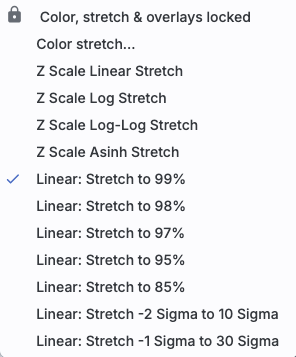 | The top of the menu either says "Color and overlays locked" or "Color and overlays unlocked" -- by default, all of the (FITS) images that you have loaded are locked together for color and overlays. What that means is if you change the color stretch (via this menu), then the color stretch for all the (FITS) images are changed. (Or, if you add a layer to one image, or change the color table of one image, then the change is made to all the images; see other sections of this chapter.) If you don't want this to happen, select "Color and overlays locked" to unlock it. Select the text again to lock it again. |

Example: Display the pop-up for color stretch. From the main drop-down, pick 'Linear stretch to 99%'. Go back to the color stretch pop-up. Note that it has filled out the stretch type and ranges to reflect the current choice. Then -- either with the pop-up window still up or not -- go back and pick a different pre-defined stretch from the standard options. Note that the values in the pop-up change to reflect this current choice. From the pop-up, pick a different stretch type -- try "histogram equalization." Select "refresh" to update the images. Go back to the drop-down menu. The last 7 items have changed to be based on histogram equalization, as opposed to the "linear" default.
If you have a 3-color image, you can change the stretch in each color plane separately; select the tab at the top accordingly for red, green, or blue. By default, it stretches each band independently, and you can set the parameters in the stretch pop-up accordingly.

As described in Lupton et al. (2004) , a different algorithm may be useful for creating
3-band color images. Select "Hue preserving stretch" to invoke this
option. This stretch should be a brightness-independent
color-preserving asinh stretch, though in practical terms, it seems to
work best for optical images.

It may be useful to scale individual channels; sliders allow you to do so. The Q parameter has another slider. For a linear stretch, Q=0; increase Q to change what features are emphasized. Pedestal values can also be set to allow the level assigned to "black" to change.
The number that appears circled in blue
over the layers icon tells you at any given time how many layers you
have on the currently selected image (the image outlined in brown).
If you click this layers icon, you will get a pop-up
window with a list of all the layers you have on top of the image.
Here (on the right) is an example of a well-populated layers pop-up;
in real life, this is scrollable to see several more layers). From
this pop-up, you can:
You can "show all" or "hide all" with the buttons on the lower left of the pop-up window. To make this pop-up window go away, click on the 'x' in the upper right of the pop-up.
Note the target description: |  |
| Where it's possible to change colors of a
layer, click on the 'colors' link to be taken to a new pop-up from
which you can select a new color. From here, you can click on your desired color in the top colorful box. Immediately below that box, you can change the color and saturation of the top box so that you can select from a different range of colors. Below that, you can enter numerical hex codes or RGBA values (where the value for RGB is between 0 and 255, and A is in units of percent, e.g., 50 = 50%). Finally, you can also select from a pre-defined set of 15 colors by clicking on any of the small boxes. Note that the numerical codes update as you select different colors. Your choices are implemented as soon as you select them. Click 'Close' to close the window, or click 'x' in the upper right. If you have a catalog loaded into the tool, you can also obtain this pop-up by clicking on the color swatch in the heading of the catalog tab.
|
 |
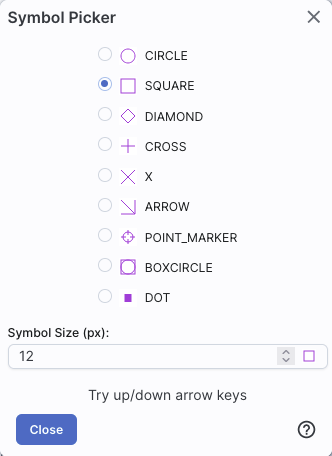
| For catalogs or the search target, you can
also select the symbol shape and size. To adjust the size, type in the
symbol size in pixels or use the up/down arrow keys to change the size
by one pixel at a time. Your choices are implemented as soon as you
select them. Click 'Close' to close the window, or click 'x' in the
upper right.
|
 |
For a HiPS image, you also have a layers icon (), from which you have new,
HiPS-specific choices in the layers:

Auto: This option overlays a position grid, with the
tile numbers marked in the center of each box. As you continue to zoom
in, when smaller tiles are needed, they are drawn, with the new tile
numbers marked. You may not zoom beyond HiPS Norder level 14 tiles.
The numbers after the "/" is in the "NESTED" (as opposed to RING or
NUNIQ) numbering system; see the IVOA
standards document for
more information.
Grid Match Image Depth: If you select this option, the grid will adjust to a new level when you zoom in and a new level of HiPS image both exists and is used for the display.
Grid Level Lock: Selecting this option yields an additional numerical drop-down menu. The higher number you pick, the smaller the grid boxes are that are drawn. When this option is selected, the boxes stay the same size regardless of how zoomed-in on the image you are.
A MOC tells you via a simple boolean yes/no, is there sky coverage from this data set in this region. The choices here are:


⚠ Tips and Troubleshooting:
for position matching. This section describes
the image locking in more detail.
When aligning images, you can specify how the images align and for
how long. Clicking the lock images icon produces this drop-down
menu:
The first set of options aligns the images only once; the second set of options makes the alignment persist ("lock") when you move (zoom, etc.) the images.
You can align by the images' WCS (world coordinate system, e.g., RA and Dec), by the target (align by target on the screen, regardless of position in the sky), by the pixels according to the origin of the coordinate system in the image header, or by the pixel at the image center. The most common choice is likely the WCS align and lock.
Note that aligning by WCS puts North up, and aligned so that each image has the same angular scale.
⚠ Tips and Troubleshooting
 -- Extract down through image planes
-- Extract a line from the image
-- Extract points from the image
-- Extract down through image planes
-- Extract a line from the image
-- Extract points from the image
Here, we cover the basic approach, with specifics of each tool integrated as we go along.
Intitiate extraction mode.
When you click on one of these icons, you enter into the extraction
mode. Text appears next to the image toolbar to remind you that
you are in this mode:  When you are
done, to end this mode, click on this "end extraction."
When you are
done, to end this mode, click on this "end extraction."
When starting out, the pop-up window that you get depends on the tool you pick.
| For the drill: | for the line: | and for the points: |  |
 |
 |
Try extraction. From this point, you can click on your image, or click and drag for the line tool. The pop-up then contains a plot of your extraction.
| For the drill: | for the line: | and for the points: |  |
 |
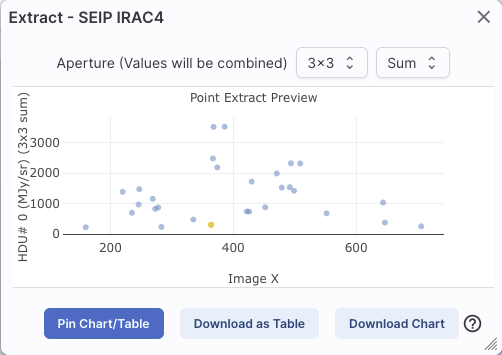 |
Note that for the line, if you have more than one image loaded and visible, you can shift-click on a new image to see the same line on a new image. Similarly, for the points, you can shift-click to change images without extracting points.
For the line extraction, if you want to change at this point to extract along a line or column, use the drop-down menu at the bottom of the pop-up. It's shown here as "free hand selection", but the other choices are line or column selection; you click on the image to select a line or a column, which is particularly useful for quick looks at semi-extracted spectral images.
Pin extraction. Once you have an extraction that you like, you can retain the extraction for further analysis. "Pin chart/table" extracts the information as a table, just like any of the other tables in this tool, with an accompanying plot. You can then manipulate the table/plot just like any other table or plot in this tool. If the tool recognizes the extraction as a spectrum, you may have additional capabilities.
Once you pin or save your extraction, the tool leaves a "footprint" of
your extraction on the image so that you can remember what the
extraction was. NOTE THAT it is not interpolating
across fractional pixels here. It is averaging if you have asked it to
average, but particularly if your pixels are
large, if you draw a line that is diagonally across pixels, it will be
immediately obvious that it's not interpolating. This line gets
rendered as these pixels:

The point appears on the image at the lower left corner of the
relevant pixel.
You can pin as many different extractions as you want.
From the line extraction pop-up, when you click on "Pin Chart/Table",
you get another pop-up:

From this pop-up, you can choose to do a line extraction from just the
currently selected image (most likely where you drew your line); all
the images and putting all of the extracted lines into one big table
(and tab); or all the images and putting all of the extracted lines
into individual tables (and tabs). When you do this, the question
naturally arises as to how the tool should specify which column (or
tab) goes with which image. Some of the images have long, sometimes
cryptic titles. You can choose to have the tool use the full image
titles in the column headers or tab titles, or abbreviations.
If you choose to have the tool generate one table for each image you have loaded, you may suddenly have a lot of new tabs at the bottom of the screen. There are navigation aids within the tables section that may help.
Download extraction. You can download the extraction as a table or plot without pinning it. Download as Table saves the table to your local disk -- first, you have the same options as immediately above, where you can choose to do a line extraction from just the currently selected image; all the images and putting all of the extracted lines into one big table; or all the images and putting all of the extracted lines into individual tables. Then you have all the same save options as a regular table. Download Chart saves the plot as shown, as a png file.
After pinning an extraction, you also have the extraction appearing as a table in the tables section of your window and as a plot in the plots section of your window. As with any table in this tool, you can save the table by clicking on the diskette icon in the table. You can choose from a variety of formats; see the tables chapter for more information. Similarly, as with any plot in this tool, you can save the plot by clicking on the diskette icon in the plot. See the plots chapter for more information.
Repeat extraction. As long as the extraction pop-up is still open, you can continue to click points or draw lines to make additional extractions.
End extraction mode.
When you are done, to end the extraction, click on "end extraction" to
end the extraction. Alternatively, just click on the 'x' in the upper
right corner of the extraction pop-up.
Advanced capabilities If you have a complicated
multi-extension FITS file with HDUs that are labeled things like
image, uncertainty, variance, flags, etc., you have some additional
options for extraction. When you pin the extraction, you can specify
an aperture larger than 1x1, which then begs the question of how the
pixel values are combined. When you have information that the tool
recognizes, and when you choose a larger aperture, you then get an
additional pulldown from which you can choose how the pixels are
combined: average, sum, or even logical "OR", depending on the
data:

When you click this icon, you can
select a region of the image, from which then you can do a whole host
of things to the image and to the catalog you may have overlaid upon
it.
| First, from the drop-down, you are given a choice of a rectangular selection or an elliptical selection: |
 |
When you have selected a region of the image, additional icons
appear above the image, and exactly which icons you see is a function
of whether you are working on a FITS or HiPS image, and whether or not
you have a catalog overlaid:  These
icons allow you to do several things:
These
icons allow you to do several things:
 Crop the image
Note that, if you have a rotated FITS image such that
a crop would have to bisect pixels, it will show you the region that
encompasses your selection. If you crop at that point, then, it will
crop in image space (such that pixels are not bisected). See the
figure below -- in the original image, north is up. This has been
rotated 45 degrees. The selected region is in white. The yellow
dash-dot line is the crop in pixel space that encompasses the selected
region.


 Select sources (and cancel
selection)
Select sources (and cancel
selection)
 Filter sources
 ). To clear the filters, click on the
cancel filters icon (which also appears after you impose filters):
). To clear the filters, click on the
cancel filters icon (which also appears after you impose filters):
 . There is much more on filters in the Tables section.
 Zoom the image
 Recenter the image
 Obtain statistics

 Search
This tool implements a new search, an "action", on the region
you have selected. It results in this drop-down (right).
where this example is based on a 4-cornered polygon.
(You can also use the region tool to define a cone; this example
happends to be a rectangle.)
From this drop-down, you can launch:
|
 |

 appears next to the image toolbar
to remind you that you are in that mode. If you are refinifng
positions for a search, it will be
appears next to the image toolbar
to remind you that you are in that mode. If you are refinifng
positions for a search, it will be  . Either way, when you are done with the selection tool,
if your other actions don't turn off the selection tool, click on that
text to turn it off.
. Either way, when you are done with the selection tool,
if your other actions don't turn off the selection tool, click on that
text to turn it off.⚠ Tips and Troubleshooting
) has a drop-down menu with
several possible options:
For each of these choices, the markers appear initially in the center of the loaded images. The first mouse click you make in any of the images will move the marker to that location.
Each of these marker choices, when overlaid and/or selected as
'active', has a dot-dash square around it. If it is asymmetrical (most
of them are), it has an additional "appendage" and a red plus at the
center of the footprint:

These so-called "handles" allow you to resize and/or rotate the
marker, depending on the nature of the marker. These handles only
appear when the marker is selected as active; if you wait a few
seconds, they vanish.
⚠ Tips and Troubleshooting
The first overlay choice (simply
called 'marker') is a red circle.
The remaining markers are all footprints from various telescopes:
Spitzer, SOFIA, HST, JWST, and Roman. HST, JWST and Roman are derived
from information provided via MAST (see http://gsss.stsci.edu/webservices/footprints/help.html
.) For Roman in
particular, they are pre-launch values.
 Spitzer/IRAC 3.6 and 4.5 micron
footprints. These two footprints are placed separately
from each other. The footprint can be moved or rotated. Click and drag
the center of the footprint. A circle appears with four small circles
("handles") around it. Grab and drag the small circles to rotate it,
or drag the big circle to move it. Change the color, delete, or add
more copies of the IRAC footprints from the layers pop-up.
Spitzer/IRAC 3.6 and 4.5 micron
footprints. These two footprints are placed separately
from each other. The footprint can be moved or rotated. Click and drag
the center of the footprint. A circle appears with four small circles
("handles") around it. Grab and drag the small circles to rotate it,
or drag the big circle to move it. Change the color, delete, or add
more copies of the IRAC footprints from the layers pop-up.
 SOFIA footprints.
Several different SOFIA footprints are available; the graphic here
shows a selection of them. The available footprints (all of which are
placed separately) are:
SOFIA footprints.
Several different SOFIA footprints are available; the graphic here
shows a selection of them. The available footprints (all of which are
placed separately) are:
 HST footprints.
You can overlay the whole focal plane footprint, shown here, or
individual instrument footprints (NICMOS, WFPC2, ACS/WFC, ACS/HRC,
ACS/SBC, WFC3/UVIS, and WFC3/IR). Consult the HST documentation for specifics on which apertures are which. The
footprint can be moved or rotated. Click and drag the center of the
footprint. A circle appears with four small circles ("handles") around
it. Grab and drag the small circles to rotate it, or drag the big
circle to move it. Note that if you overlay the
footprint on a very small image, nothing will appear to have happened.
You need at least a 45 arcmin image to comfortably see the footprint.
Change the color, delete, or add more copies of the HST footprints from
the layers pop-up.
HST footprints.
You can overlay the whole focal plane footprint, shown here, or
individual instrument footprints (NICMOS, WFPC2, ACS/WFC, ACS/HRC,
ACS/SBC, WFC3/UVIS, and WFC3/IR). Consult the HST documentation for specifics on which apertures are which. The
footprint can be moved or rotated. Click and drag the center of the
footprint. A circle appears with four small circles ("handles") around
it. Grab and drag the small circles to rotate it, or drag the big
circle to move it. Note that if you overlay the
footprint on a very small image, nothing will appear to have happened.
You need at least a 45 arcmin image to comfortably see the footprint.
Change the color, delete, or add more copies of the HST footprints from
the layers pop-up.
 JWST footprints.
You can overlay the whole focal plane footprint, shown here, or
individual instrument footprints (FGS, MIRI, NIRCAM, NIS, and NIRSPEC).
Note that if you overlay the footprint on a very
small image, nothing will appear to have happened. You need at least a
30 arcmin image to comfortably see the entire JWST focal plane. Please
consult the JWST
documentation for details
about the footprints. In all cases, if the footprint is 'active', a
circle near the middle of the footprint will appear with four small
circles ("handles") around it. Grab and drag the small circles to
rotate it, or drag the big circle to move it. Change the color,
delete, or add more copies of the footprints from the layers pop-up.
JWST footprints.
You can overlay the whole focal plane footprint, shown here, or
individual instrument footprints (FGS, MIRI, NIRCAM, NIS, and NIRSPEC).
Note that if you overlay the footprint on a very
small image, nothing will appear to have happened. You need at least a
30 arcmin image to comfortably see the entire JWST focal plane. Please
consult the JWST
documentation for details
about the footprints. In all cases, if the footprint is 'active', a
circle near the middle of the footprint will appear with four small
circles ("handles") around it. Grab and drag the small circles to
rotate it, or drag the big circle to move it. Change the color,
delete, or add more copies of the footprints from the layers pop-up.
 Nancy Grace Roman Space Telescope
focal plane footprint. As above, the footprint can
be moved or rotated. Click and drag the boresight (the cross hairs),
which appears by default to the upper right of the array of squares.
A circle appears, centered on the boresight, with four small circles
("handles") around it. Grab and drag the small circles to rotate it,
or drag the big circle to move it. Note that if you
overlay the footprint on a very small image, nothing will appear to
have happened. You need at least a 60 arcmin image to comfortably see
the footprint, and even then you will probably have to click and drag
to see the entire footprint. Consult the Roman
documentation for
specifics on the apertures. Change the color, delete, or add more
copies of the Roman footprint from the layers pop-up.
Nancy Grace Roman Space Telescope
focal plane footprint. As above, the footprint can
be moved or rotated. Click and drag the boresight (the cross hairs),
which appears by default to the upper right of the array of squares.
A circle appears, centered on the boresight, with four small circles
("handles") around it. Grab and drag the small circles to rotate it,
or drag the big circle to move it. Note that if you
overlay the footprint on a very small image, nothing will appear to
have happened. You need at least a 60 arcmin image to comfortably see
the footprint, and even then you will probably have to click and drag
to see the entire footprint. Consult the Roman
documentation for
specifics on the apertures. Change the color, delete, or add more
copies of the Roman footprint from the layers pop-up.
stands for hierarchical progressive surveys, and these kinds of images
are multi-resolution HEALPix
images (where HEALPix stands for Hierarchical Equal Area isoLatitude
Pixelation). (Also see IVOA docs on HiPS .) In practice, what this means is that you can
interact with images of a very large chunk of sky, and as you zoom,
the pixel size changes dynamically. HiPS images are fundamentally
different than FITS images, and as such, what you can do with the HiPS
images are different than what you can do with the FITS images. The whole point of HiPS images is to provide on-demand resolution changes. Zoom out, and it loads large pixels. Zoom in, and it loads smaller pixels. HiPS images are designed to cover large areas of sky efficiently. If you need to visualize many degrees, this is the image type to use. This is why HiPS images are used in this tool for coverage images.
HiPS images typically have the color and stretch set by the person who originally made them. The color table can be remapped within this tool. But, you cannot, in general, change the stretch of HiPS images with as much flexibility as you can with FITS images. This is why there may be multiple versions of some data sets available.
HiPS maps typically come with a
Multi-Order Coverage map (MOC). A MOC is a format developed by the
International Virtual Observatory Alliance to specify sky regions. In
this context, a MOC tells you via a simple boolean yes/no, is there
sky coverage from this data set in this region. You can overlay a MOC
from one data set onto a completely different data set's HiPS image.
The Euclid Data Explorer uses MOCs to show you the planned coverage
and the released data on the two main search screens. You can also use
MOCs to, say, overlay the MOC from an entirely different survey onto
the Euclid MOC to see if there are data from it that overlap with
Euclid.
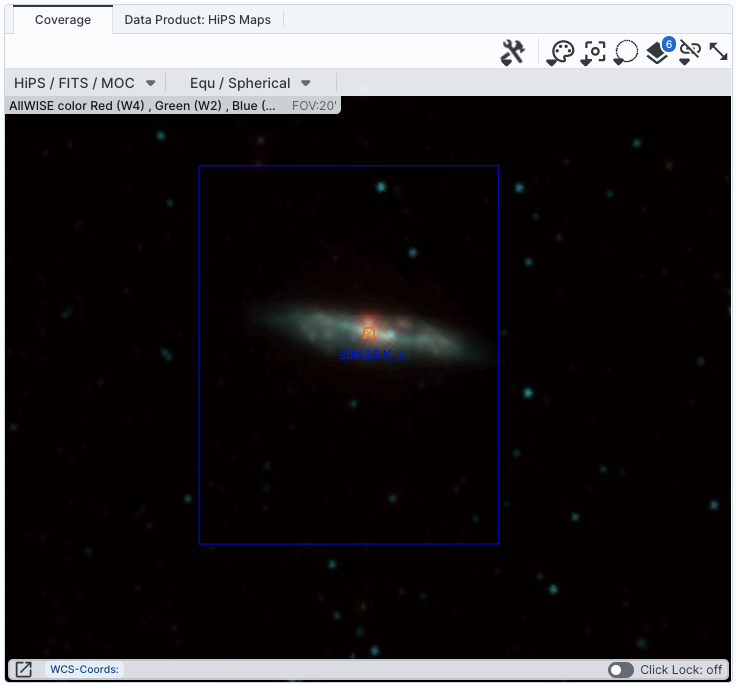
 | You may have a coverage image like this -- this is a 2MASS HiPS image showing search results that include 9 Euclid tiles (the large green squares) and 160 sources from the MER catalog (the small pink squares). The red square in the center of each tile is the reference position for each tile. The currently selected row in each of the image and object tabs on the left (not shown) are rendered orange in this coverage image; the top center image is orange, and it is hard to see the orange soruce inamongst the rest of pink square cluster. The target of the search is the small (difficult-to-see) reticle in the middle. |
 | Here is a zoom in on the same coverage image with two new layers -- the green/orange tile boundaries are still shown, but now there are two catalogs overlaid. One catalog is pink and one is blue; both have a lot of sources, so many that the hierarchical catalog display is triggered. The pink diamonds on the left with the enclosed numbers represent sources -- that is, the rightmost pink diamond has 214 sources within it, and the diamond to its lower left has 2950 sources within it, etc. The blue catalog originally had 3 diamond-shaped cells, but two of them have been clicked such that the individual sources are shown to the lower right and left of the one remaining blue diamond which encloses 1066 sources. |
You can interact with the coverage image in the same way as you would any other image loaded into this tool.
The thing that makes a coverage image a little bit different, however, is that it can automatically adapt, even beyond what a HiPS image can intrinsically do. The next subsection includes more details about how it can automatically change to accomodate your needs and zoom level.

The first drop-down menu looks like this.

There are two sections here.

Things to note:

Things to note:
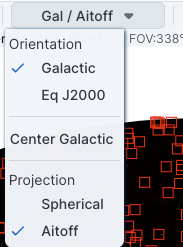
There are three sections in this menu.
 Add a compass rose
  Measuring a distance
 Read in a DS9 Regions file
 This reminds you of the
target on which you searched -- here, it was 61.345123, -46.931068 in
J2000. The two icons next in that row indicate, respectively, "copy
this location to the clipboard" and "center image on this position."
This reminds you of the
target on which you searched -- here, it was 61.345123, -46.931068 in
J2000. The two icons next in that row indicate, respectively, "copy
this location to the clipboard" and "center image on this position."